

Creating a report
A report in Deem Insight is a drill-enabled analytical view of your data. You define dimensions, measures, filters and layout so that the report shows the information needed for insight and decision-making. This guide explains how to create and configure a new report.
Deem Insight supports drill reports. There are two main categories of these reports, “periodic” and “all data”. The main difference between these categories are how the measures are grouped.
| Periodic | All data | |
|---|---|---|
| Filter | Should contain a period selection | No specific requirements |
| Measures | Measures should be grouped in periodic groups (YTD,TP etc) | No specific requirements |
| Zero values | Null/0 values might appear because dimension exist, but not in selected period | No specific requirements |
| Dimensions | No specific requirements | No specific requirements |
To create/modify reports, the user must have analytics administration access. You need to create a connection and data sources before you can start building a report. The reports can either be edited from a report by choosing menu and edit, or you can find the report in the “admin” section:
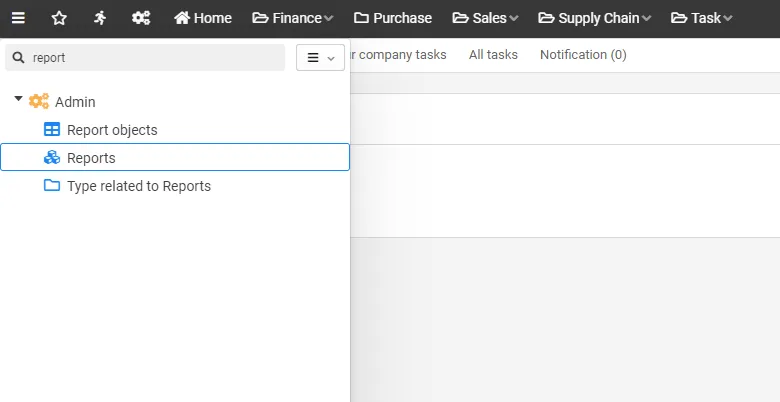
- Open report administration from the admin menu to create and maintain reports.
- This view lists available reports and their status.
The report editor
Section titled “The report editor”A report opens as a single document with two tabs: Report editor and Report usage. The Report editor tab is where you configure the report itself. The Report usage tab shows where the report is used (menus, bookmarks and related types).
The editor is organized as a navigation panel on the left and a detail panel on the right. Selecting an item on the left shows its settings on the right — everything is edited in place, without leaving the editor.
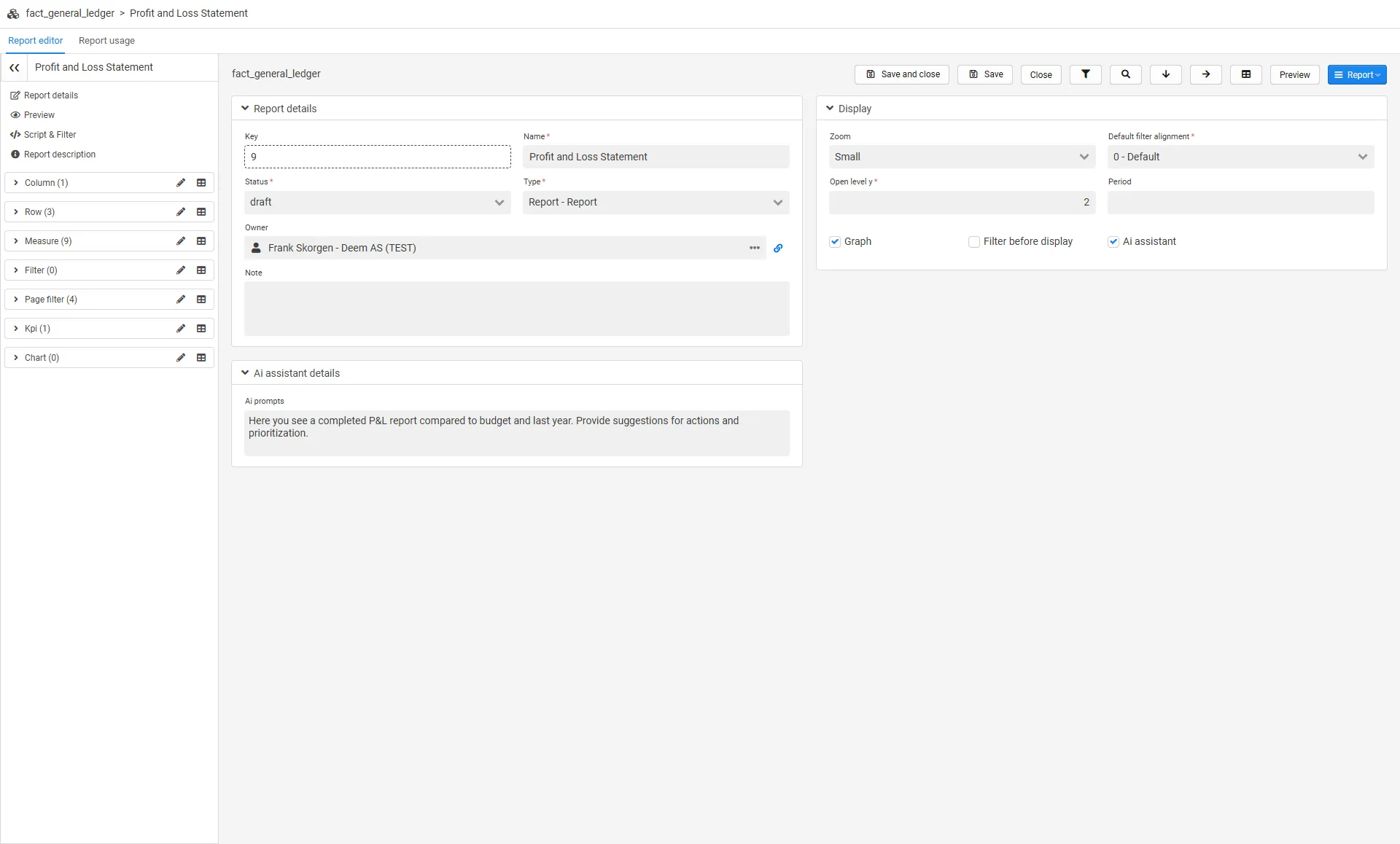
The navigation panel contains:
| Item | Description |
|---|---|
| Report details | The report settings (name, status, owner, display options). |
| Preview | A live preview of the report, rendered inside the editor. |
| Script & Filter | The report script and the report filter, with script help and suggestions. |
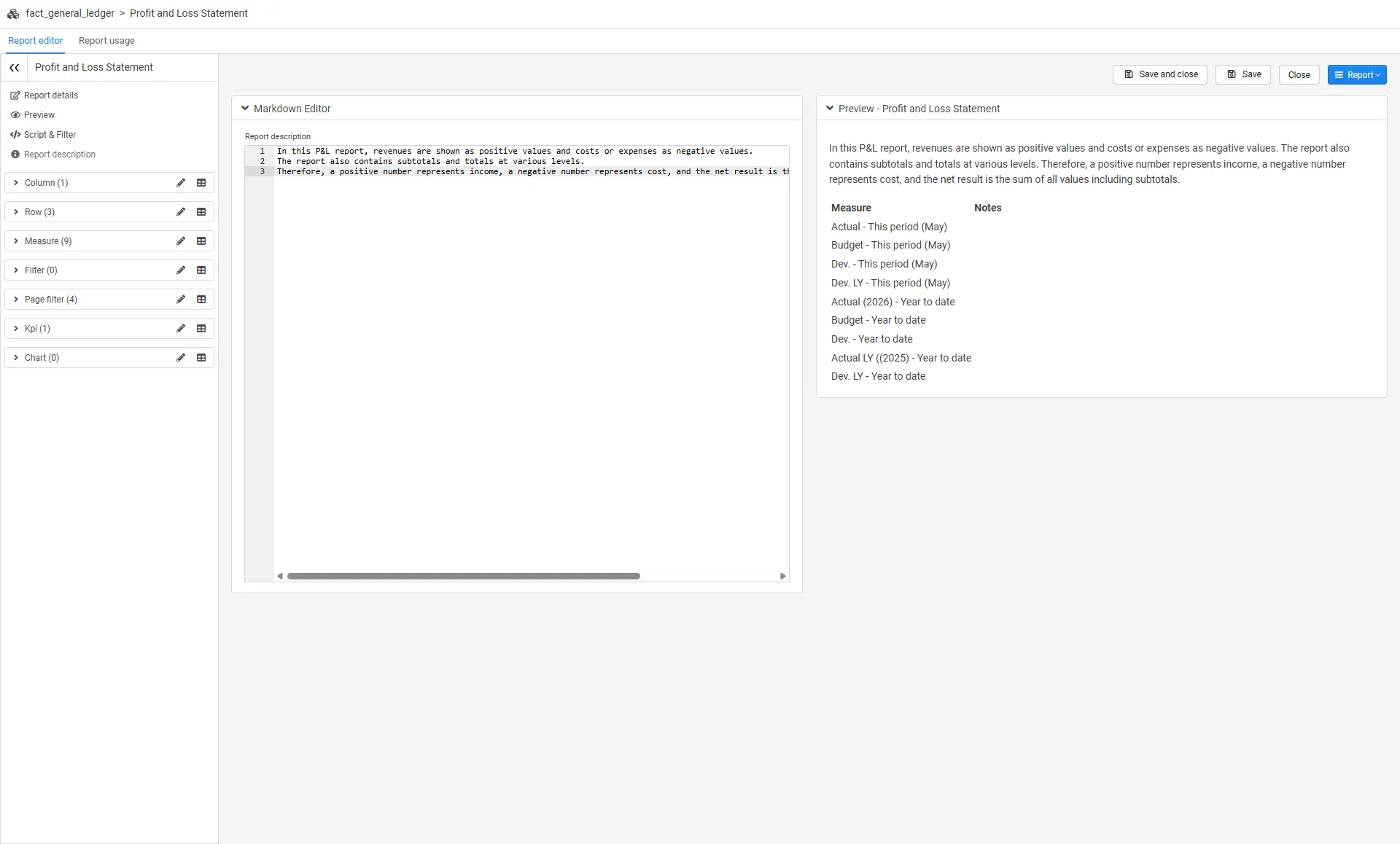
| Report description | A markdown editor for the report description, with live preview. |
| Column | Column dimensions (the drill path in the x-direction). |
| Row | Row dimensions (the drill path). |
| Measure | The report measures. |
| Filter | Filter objects available to the user in the report. |
| Page filter | Page filter objects (quick filters shown in the report view). |
| Kpi | KPI objects in the report. |
| Chart | Graph/chart objects in the report. |
Each object section shows the number of objects in its header, can be collapsed, and lists its objects in a grid. The objects can be reordered with drag-and-drop, and the order is reflected in the report. Each section has two quick actions: a pencil icon to add/remove objects on that section in bulk, and an overview icon that opens a list view of the section with new/edit tools.
The report has one URL, and the editor remembers which item you had selected. Navigating back to the report — including with the browser back button — returns you to the item you were working on.
Saving
Section titled “Saving”When editing in the report editor, Enter (or the Save button) saves and keeps you where you are, so you can continue working. Save and close saves and navigates back to where you came from. If you delete an object from within the editor, you are taken to that section’s overview instead of leaving the report.
Data objects and report objects
Section titled “Data objects and report objects”The objects in a report exist on two levels:
- A data object is the shared definition of a dimension, measure, KPI or chart. It is defined once and can be reused across all reports.
- A report object is the use of an object in one specific report. It holds the report-specific settings, such as position, sorting and its own script.
When a report object is linked to a data object, the shared definition is applied first, and the report object’s settings and script are applied on top. This means you keep the common definition in the data object and make small report-specific overrides in the report object, without affecting other reports that use the same data object.
The object detail forms reflect this with two sections: changes under Report object details apply to this report only, while changes under Object details apply to all reports using the data object.
The name is one of the shared settings, which is why the report object’s own name field is read-only while it is linked. Rename the data object and every report using it follows, in each language the name is translated into. Names and translations are edited on the data source — see Choosing the dimensions.
Dimensions and measures always reference a data object. KPIs and charts can either be standalone, with the script kept in the report object, or be linked to a data object — see KPIs and charts.
Report details
Section titled “Report details”The Report details item contains the report settings, split into a Report details and a Display section.
| Field | Description |
|---|---|
| Key | Report key (read-only — use the Change key action to change it). |
| Name | The default report name (but can be changed when adding it to the menu). |
| Status | Set the status of the report (statuses can be configured). |
| Type | The report type. See Report types for the available types. |
| Owner | The report owner (select from users). |
| Note | Freetext field. The text will be shown in the report’s help button. |
| Zoom | Default zoom level for the report. |
| Default filter alignment | Where the filter panel is placed (top, left or right). |
| Open level y | Number of levels opened as a default for the report. |
| Period | Default period behavior. |
| Graph | Show/hide graphs. |
| Filter before display | Require the user to set a filter before the report is displayed. |
| Ai assistant | Enable the AI assistant for the report (when an AI provider is configured). Prompts are configured in the Ai assistant details section. |
For Dashboard app reports, the Report details section also shows the report’s Data feed id (generated on save). See data sources for how Data feeds are consumed.
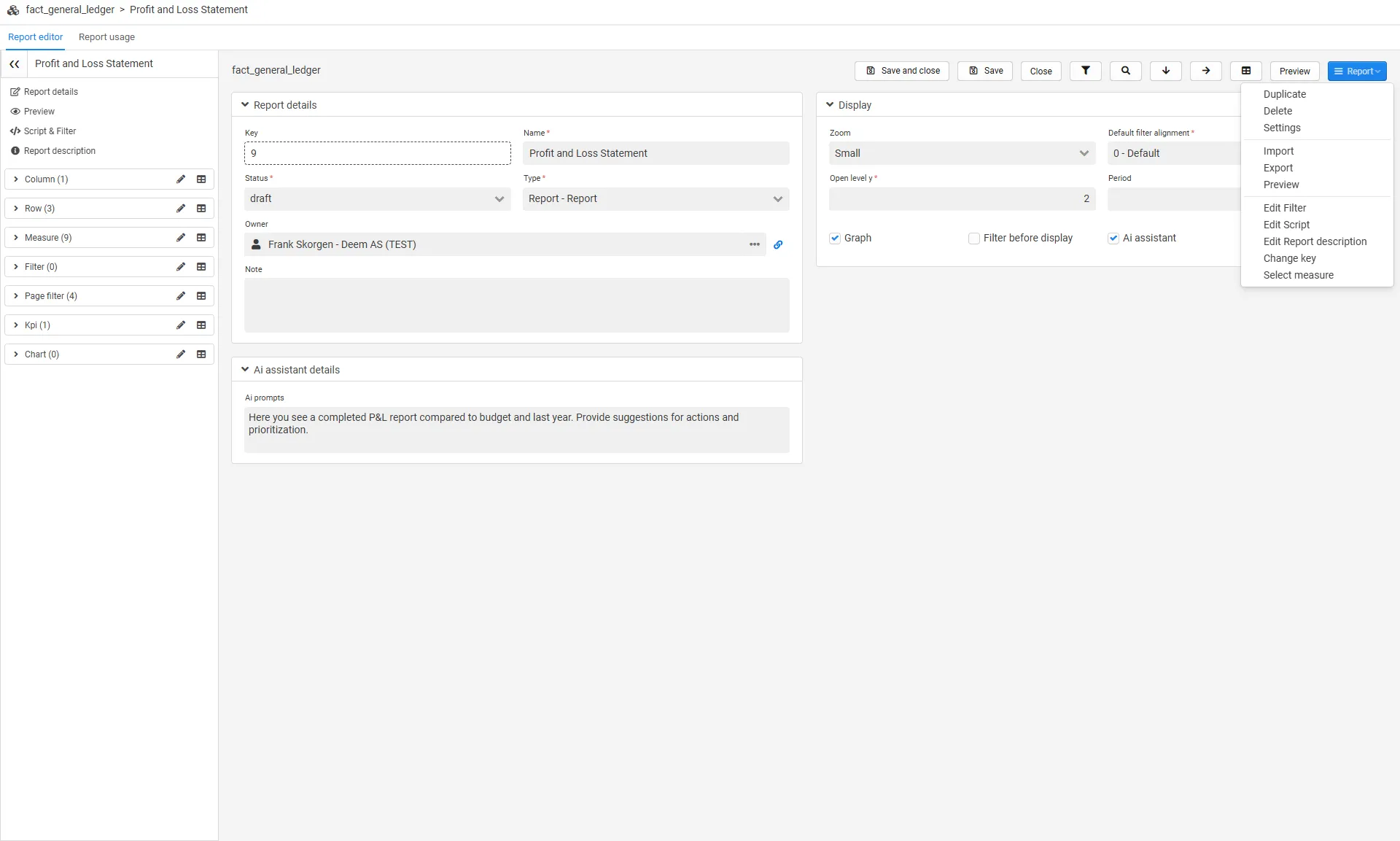
The Report menu in the toolbar contains the report-level actions:
| Action | Description |
|---|---|
| Duplicate | Copy the report. |
| Delete | Delete the report. |
| Settings | Open the report settings. |
| Import | Import another report. |
| Export | Export current report. |
| Preview | Preview the report data. |
| Edit Filter | Opens a window to edit the filter. Contains help functions for scripts. |
| Edit Script | Opens a window to edit the script. Contains help functions for scripts, colors and icons. |
| Edit Report description | Opens a window to edit the report description. |
| Change key | Change the report key. |
| Select measure | Add/remove measures in bulk. |
The toolbar also has quick actions for opening the filter, page filter, row, column and measure sections, and a Preview button.
Script & Filter
Section titled “Script & Filter”The Script & Filter item contains the report script and the report filter. The script is where report behavior is configured (see report scripts), and the filter restricts all content in the report, graphs and KPIs (see Filters below).
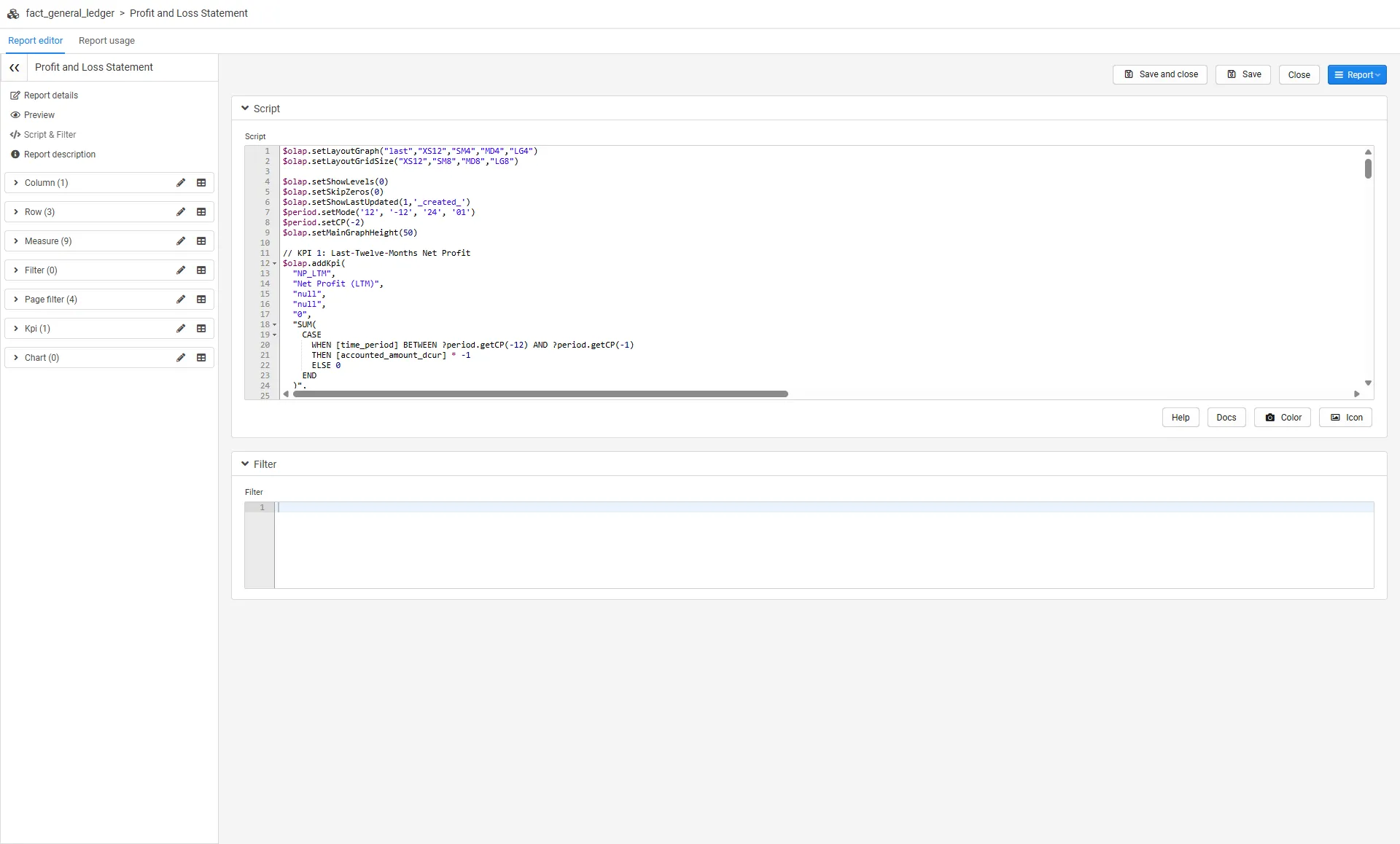
Both editors have script suggestions, and the script editor toolbar gives access to script samples (Help), the documentation (Docs), and color and icon references. Right-click in an editor and choose Edit to open it in a larger window.
Report description
Section titled “Report description”The Report description item is a markdown editor for the report description, with a live preview next to it. Script expressions (for example ?period.getYear()) are resolved in the preview. The description is shown in the report’s help button.
Preview
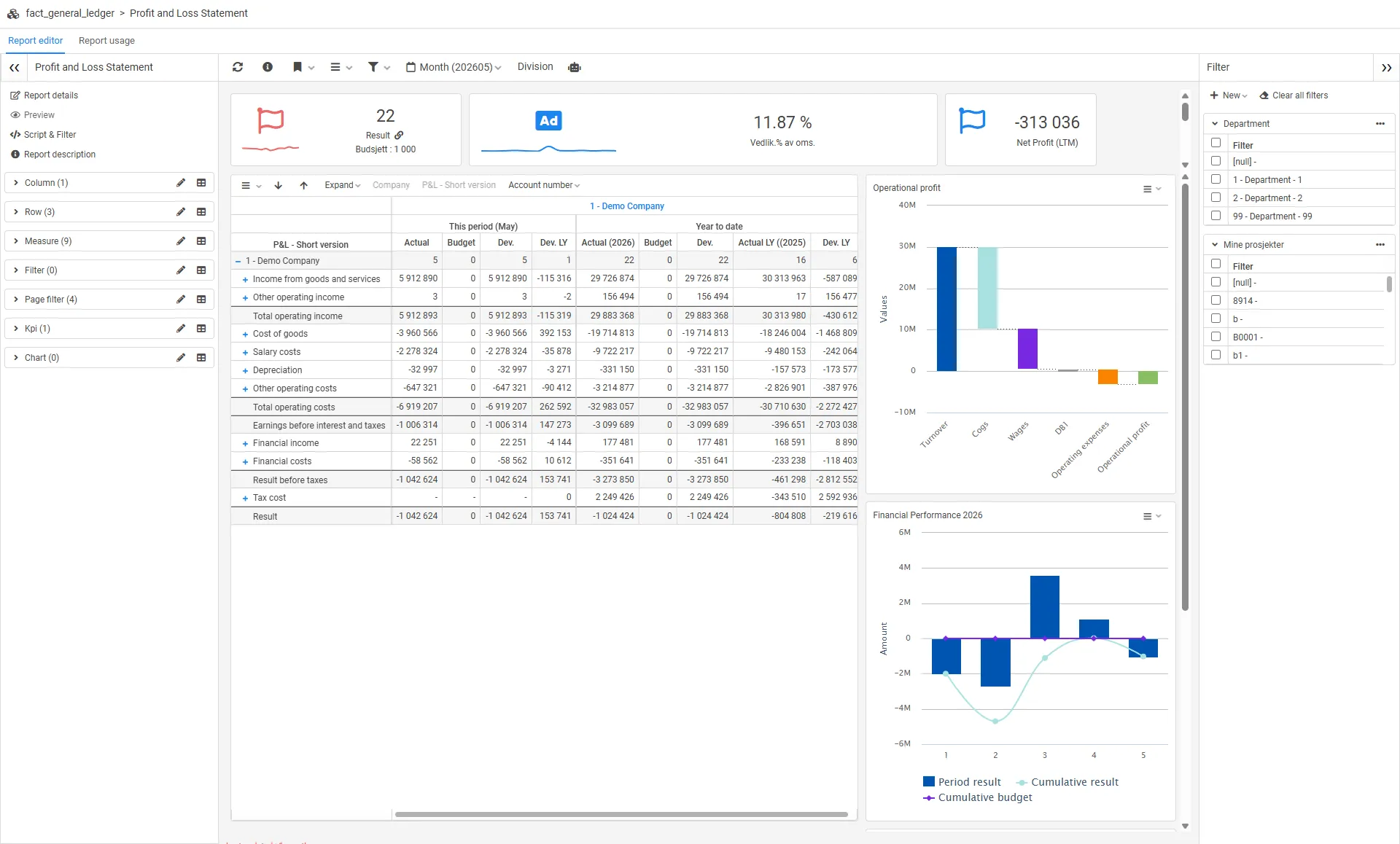
Section titled “Preview”The Preview item renders the report inside the editor, so you can verify changes without leaving it. KPIs and charts can be reordered directly in the preview with drag-and-drop.
Page filter
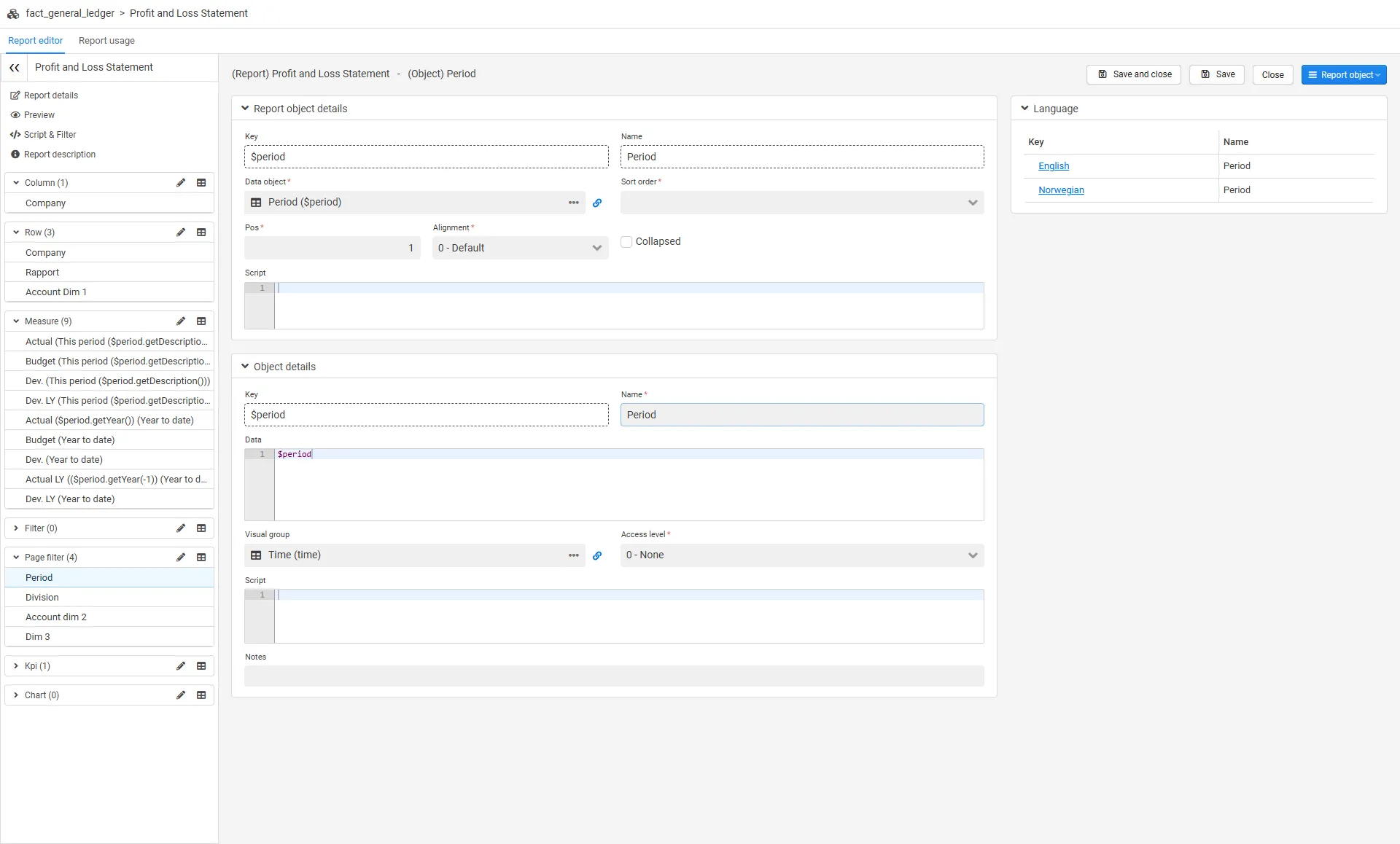
Section titled “Page filter”Page filters provide quick access to frequently used filters directly in the report view. They make it easier to adjust the report without opening the full filter panel and are especially useful for dimensions that are used often.
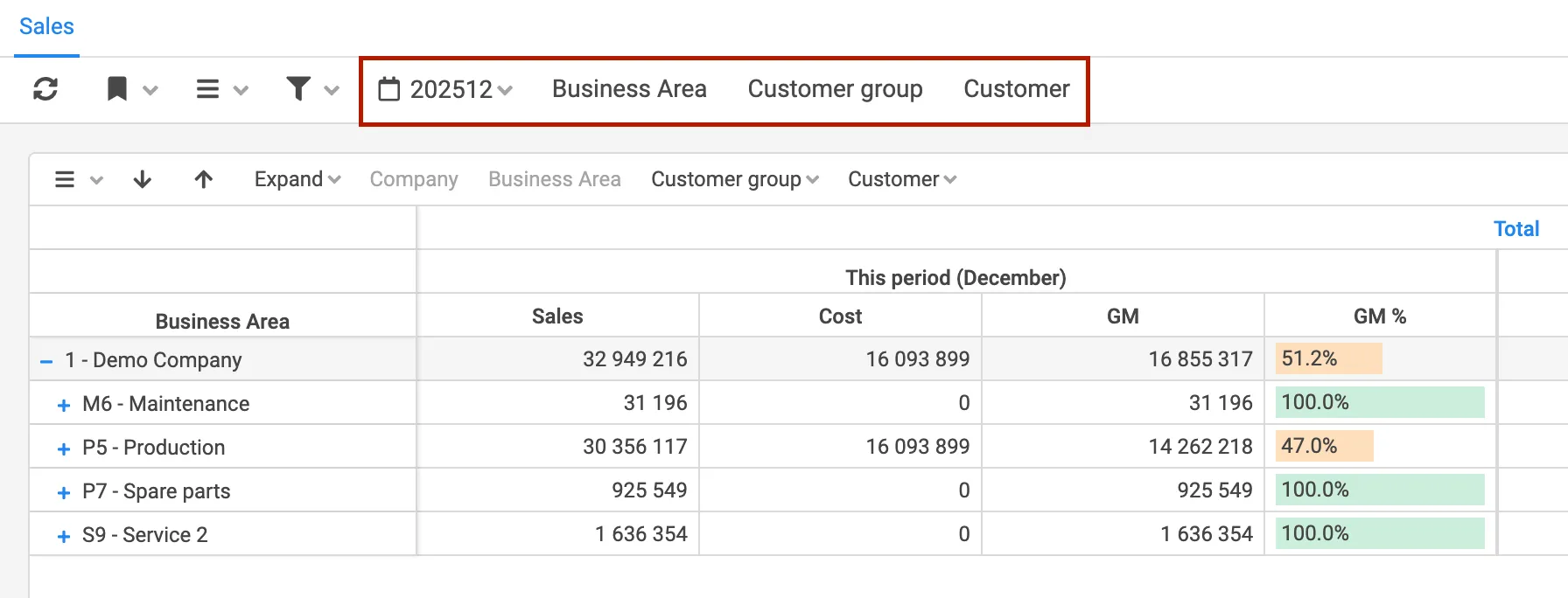
All dimensions that are included in the dimensions can be used as page filters.
1. Open the report you want to customize2. Select Menu → Edit3. Open the Page filter section in the editor4. Add dimensions you want as quick filters (use the pencil icon)5. Set defaults or script behavior if neededOnce configured, the selected page filters will be visible directly in the report view and can be adjusted by the end user.
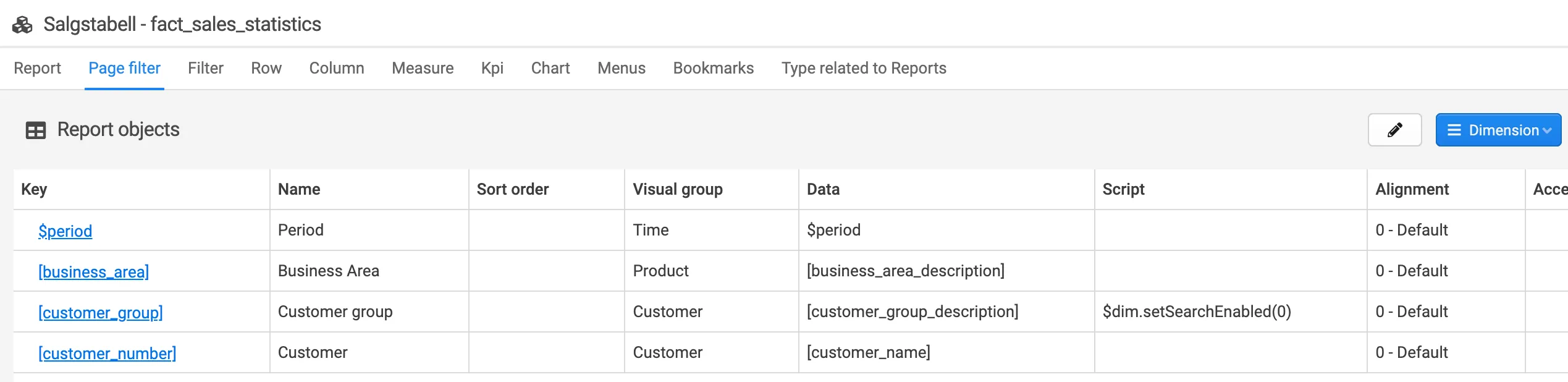
For each page filter, it is possible to configure additional behavior. Select the page filter in the navigation panel to open its details.
You can as an example:
- Set default values so the report opens with predefined filters applied
- Add scripting to control filter behavior
- Choose where the filter is displayed in the report, for example at the top, left, or right side
These settings allow page filters to be adapted to different report layouts and usage patterns.
You can apply changes either globally or locally within a report object. Changes made under Object details will affect all reports using this dimension. Changes made under Report object details will only apply to the current report.
Filter
Section titled “Filter”Filters are used to control which data is included in the report. Compared to page filters, filters provide more quick access to advanced filtering options and allow you to define detailed conditions for how data should be included or excluded.
Filters are typically used when more complex filtering logic is required and the users need a quick access to filter in the report.
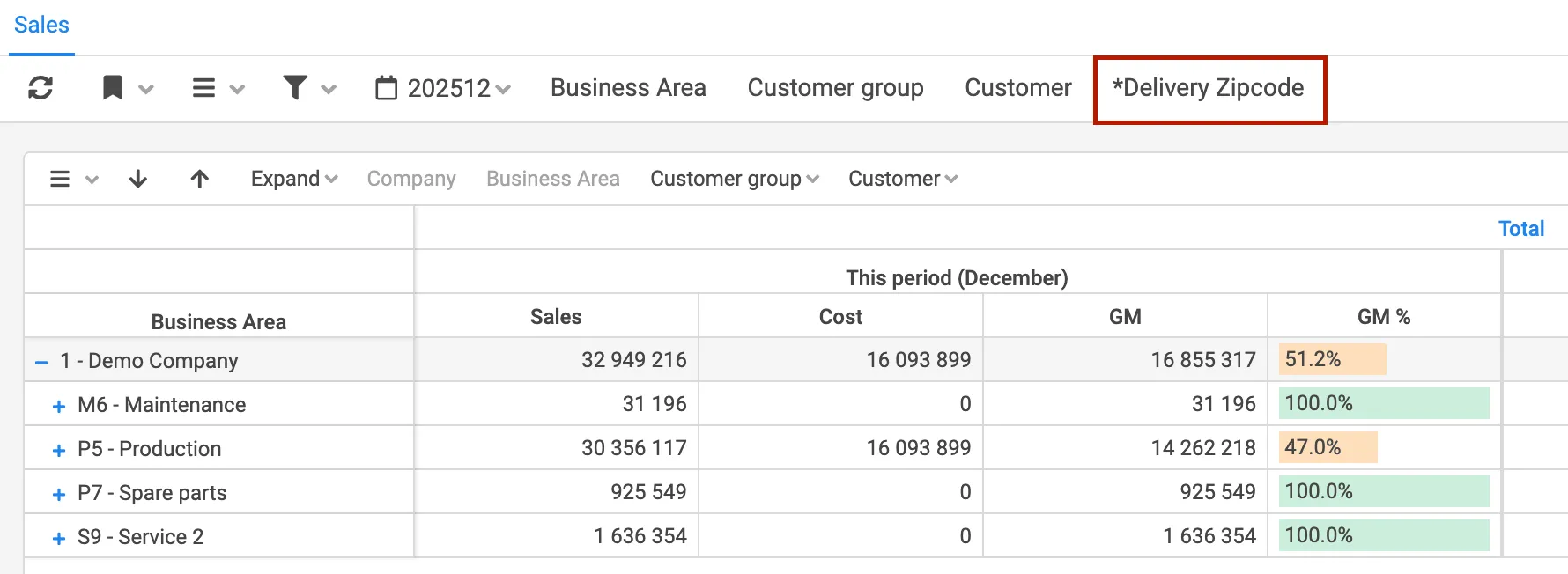
All dimensions that are included in the report can be used as filters.
To configure filters, open the Filter section in the report editor. From here, you can select which dimensions should be available as filters and define how they should behave. Always set a default operator for each filter.
In reports, you can set a standard drill path.
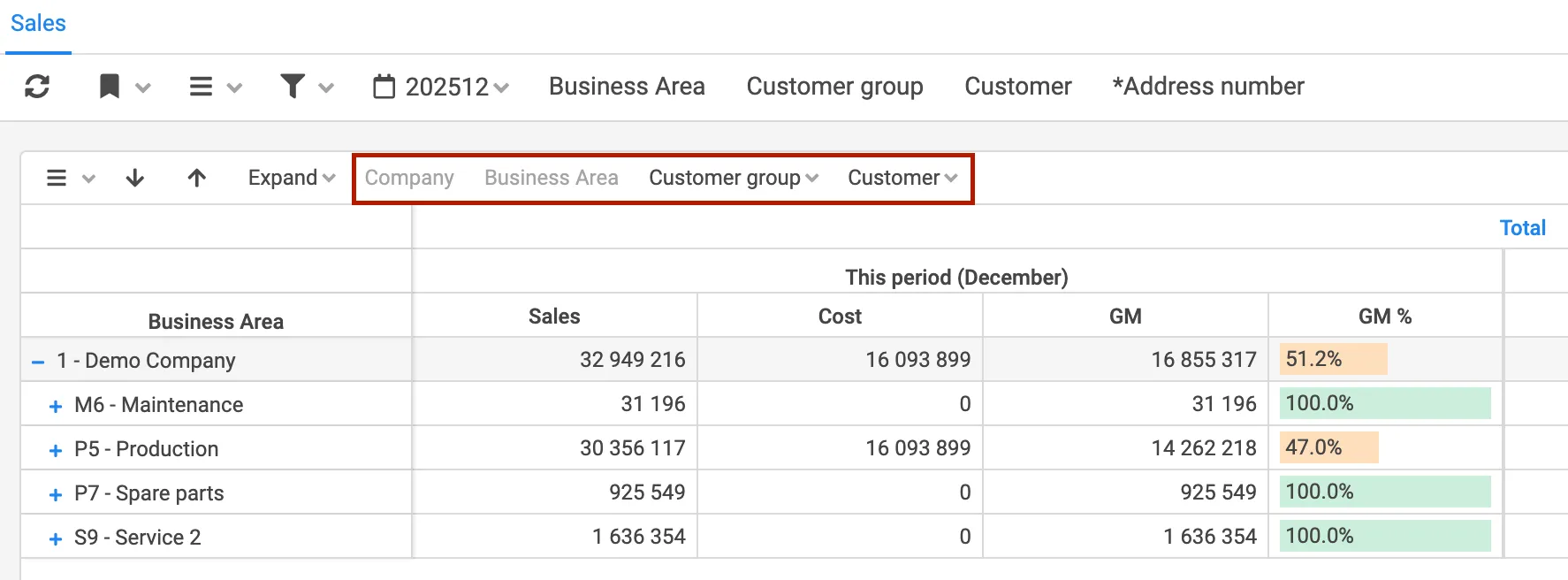
All dimensions added to the data source are available to set as rows. This is done in the Row section of the report editor. Selecting a row object opens its details, where Report object details apply to this report only and Object details apply to all reports using the dimension.
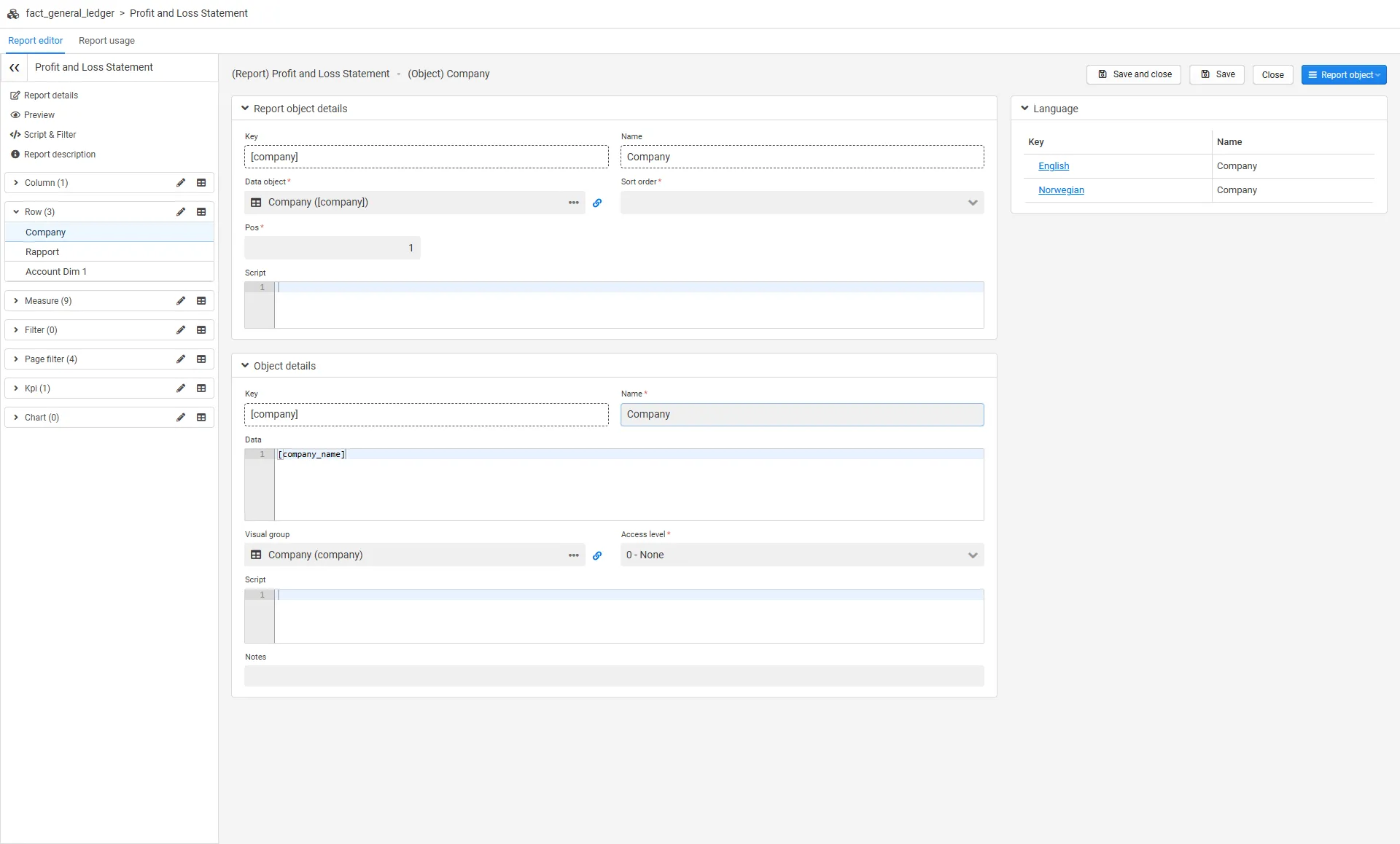
Sorting of the dimension is possible, and the drill order can be changed by dragging the rows in the grid.
Column
Section titled “Column”In reports, you can set a standard drill path also on the x-direction.
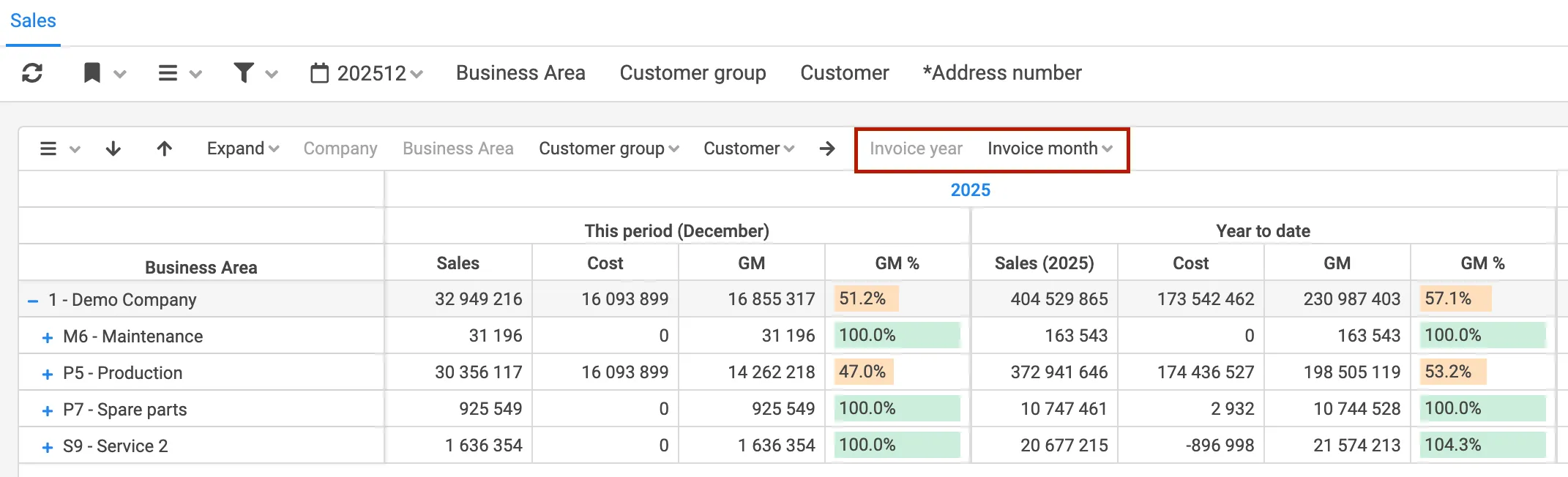
All dimensions added to the data source are available to set as columns, but company and period is often used. This is done in the Column section of the report editor.
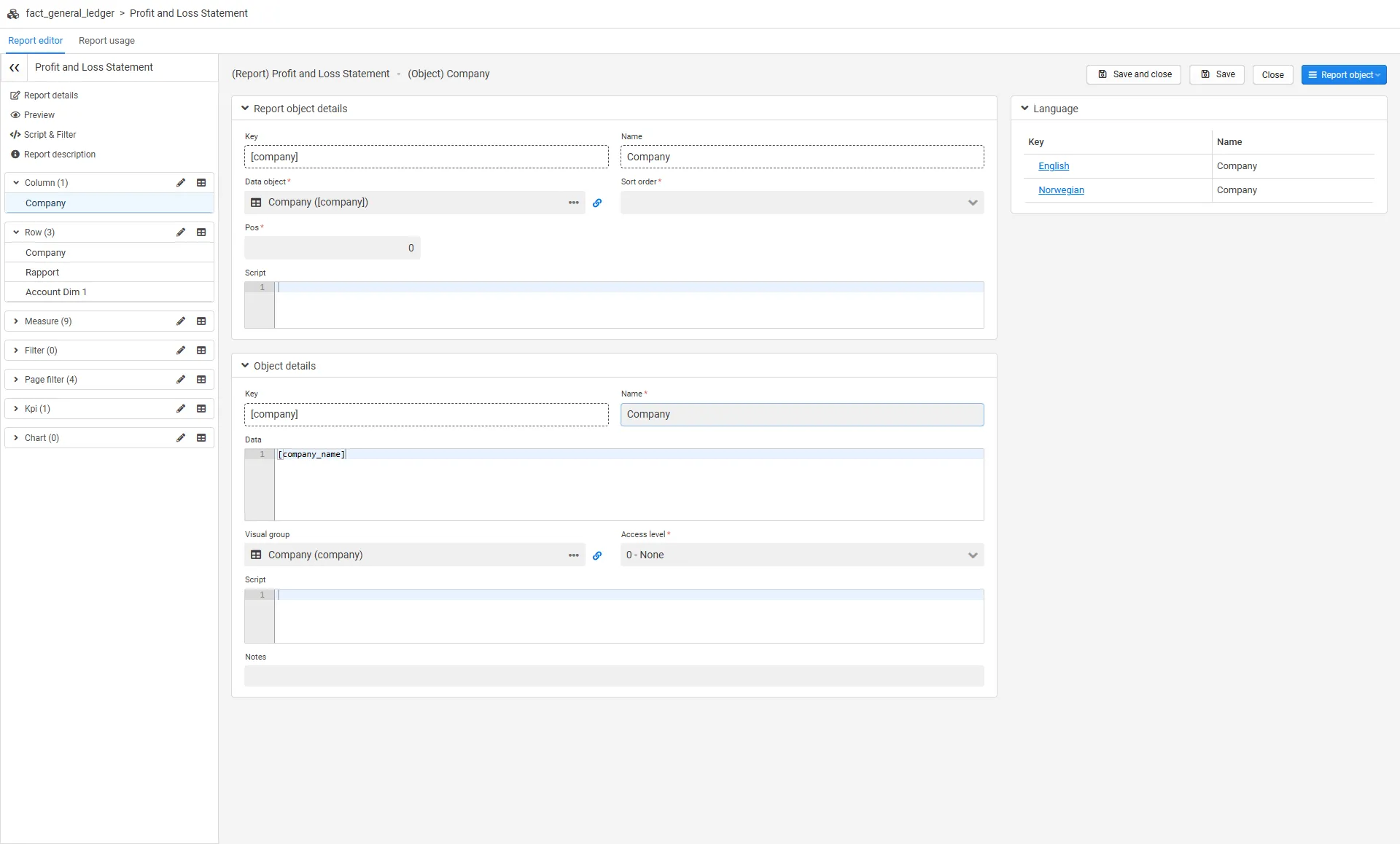
Sorting of the dimension is possible.
Measure
Section titled “Measure”All measures added to the data source are available to set as measures. This is done in the Measure section of the report editor. The measure list shows each measure with its visual group in parentheses, for example “Actual (This period)”. Regarding how to create a measure in the data source, see the data source documentation.
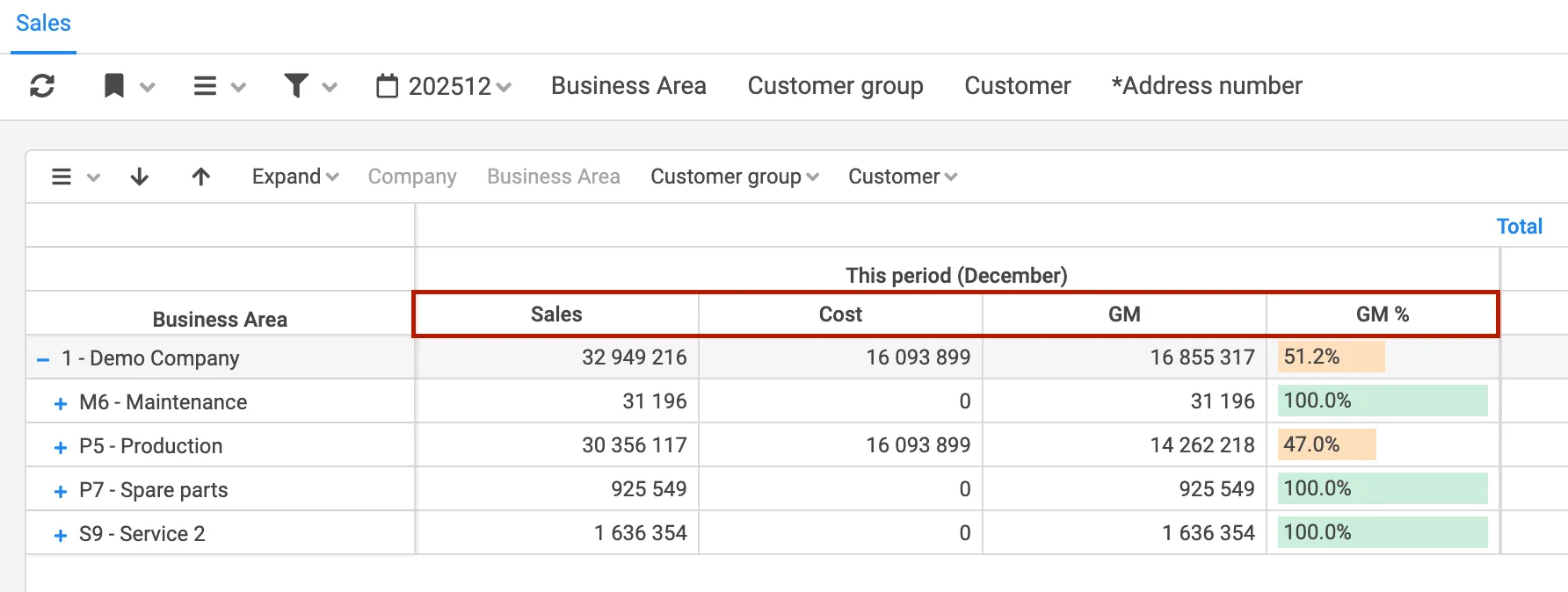
Selecting a measure opens its details. In addition to the aggregate operator, the visual group and the filter group, the measure has a Format field that decides how its values are displayed — decimals, thousand separators, percentages, values in thousands, hours or dates. The field is free text, and the … button next to it opens a builder with the available masks and prefixes. The syntax is described in Number formats.
KPIs and charts
Section titled “KPIs and charts”KPIs and charts (graphs) are objects in the report, listed in the Kpi and Chart sections of the editor. Each object has its own details and its own script box, so a KPI or chart can be edited without going through the main report script. The script functions are the same as before — see Graphs, Tables and KPI’s, Graphs and KPI’s.
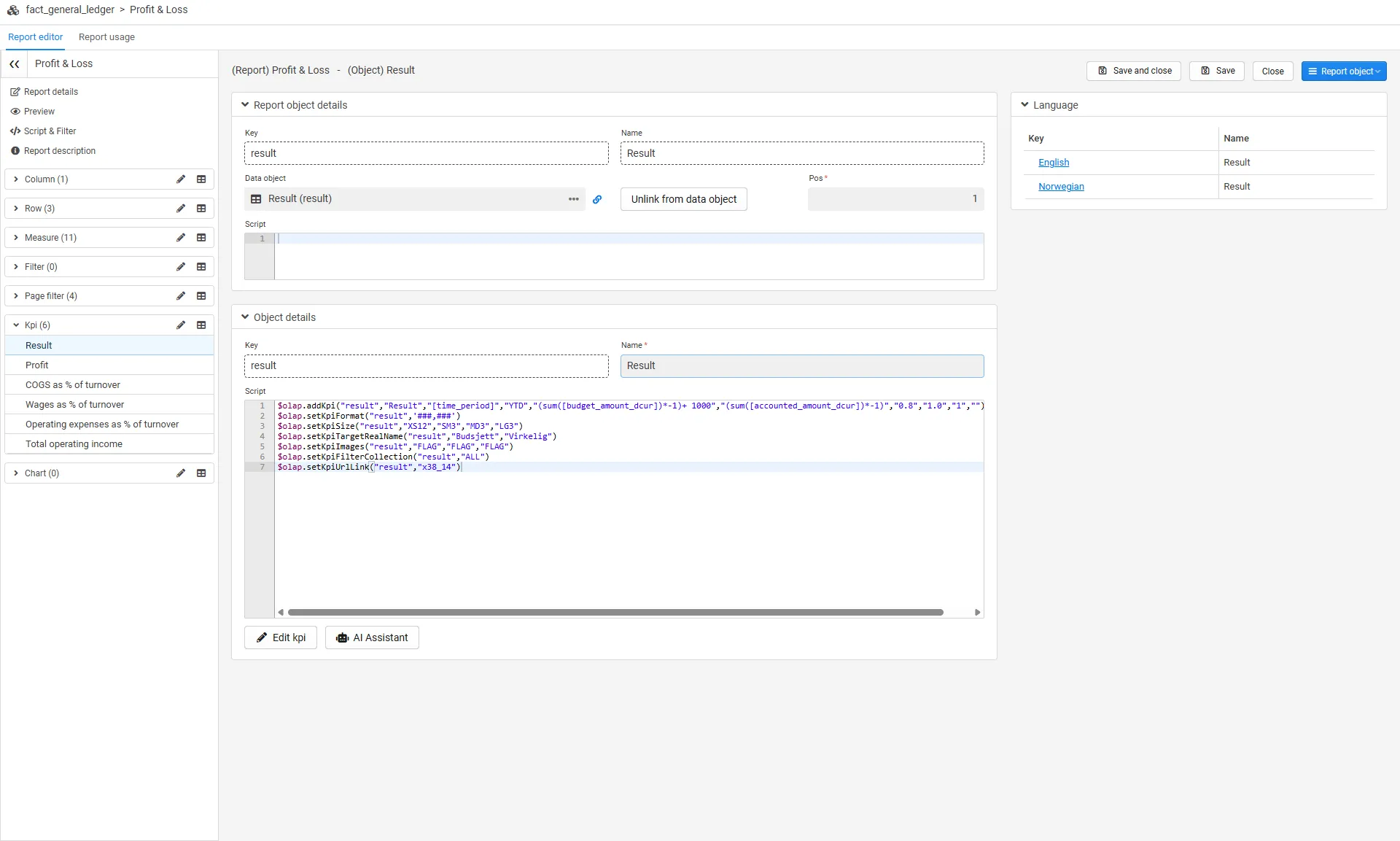
KPI and chart objects can also be backed by a shared data object:
- Link to a data object to reuse a shared definition across reports. The data object’s script runs first, and the report object’s own script runs on top — so small report-specific overrides (for example size, format or a filter) go in the report object, while the common definition stays in the data object.
- Convert to data object lifts the object’s inline script into a new shared data object and links to it. Use this when a KPI or chart built in one report should be reused in other reports.
- Unlink from data object copies the effective script back into the report object so it works standalone again.
For KPIs, the Edit kpi action opens a wizard that builds the KPI configuration step by step. When an AI provider is configured, an AI Assistant can help build or modify KPI and chart scripts.
AI Report Assistant
Section titled “AI Report Assistant”When an AI provider is configured, the navigation panel has an AI Assistant button. It opens the AI Report Assistant, a chat panel next to the editor. Describe the report you want, and the assistant proposes a complete definition — rows, columns, measures, filters, page filters, KPIs and charts. Keep chatting to refine it.
The assistant works on an existing report. To start from scratch, create the report as usual with the data source, open it in the editor and click AI Assistant.
Nothing is written while you chat. Each proposal is shown as a list of changes, with the type, key, name and what changes (new, changed or removed). All changes are selected; untick the ones you don’t want and click Save. The editor refreshes, so you see the result in Preview.
The assistant only edits the report’s own filter, script and report objects:
- The report name and key are never changed.
- Data objects are read-only. The assistant places existing dimensions and measures, and reuses existing KPI and chart data objects where they fit. New KPIs and charts are created as standalone report objects.
- Other reports are never affected.
Report usage
Section titled “Report usage”The Report usage tab shows where the report is used, with a section for each usage type: Menu, Bookmark and Type related to Report. Selecting an item shows its details in the panel on the right.
In the Menu section the report is connected to a menu point in addition to which role(s) should have access to the report.
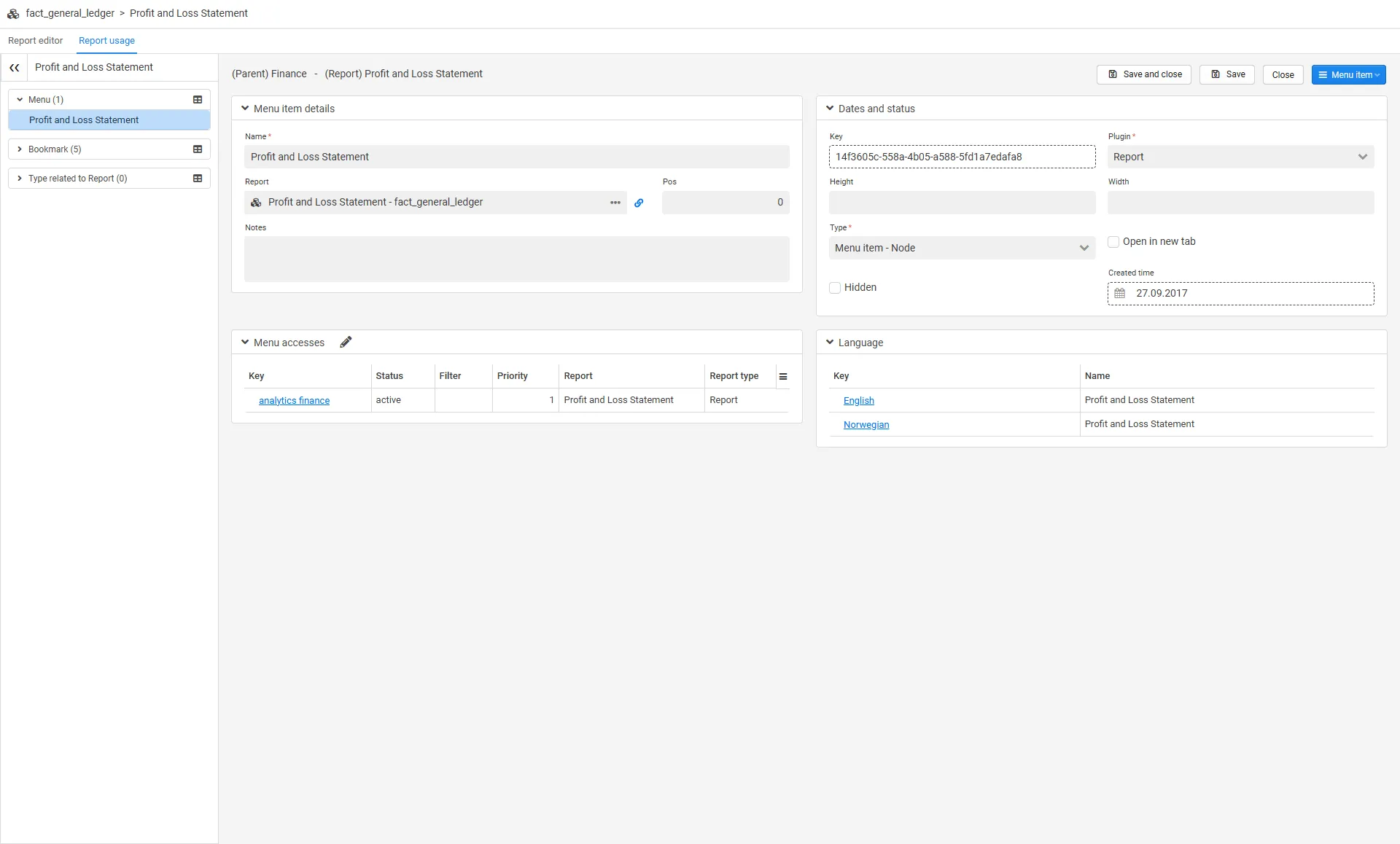
In the Menu accesses section, you get an overview of which menu points the report is connected to, and which roles have access. Several roles can be selected. This is also where filters related to which access the various roles should have to the report is set. When a filter is set on a user role, the user will only see data specified by the filter — with no filter, the users have access to all data.
Bookmarks
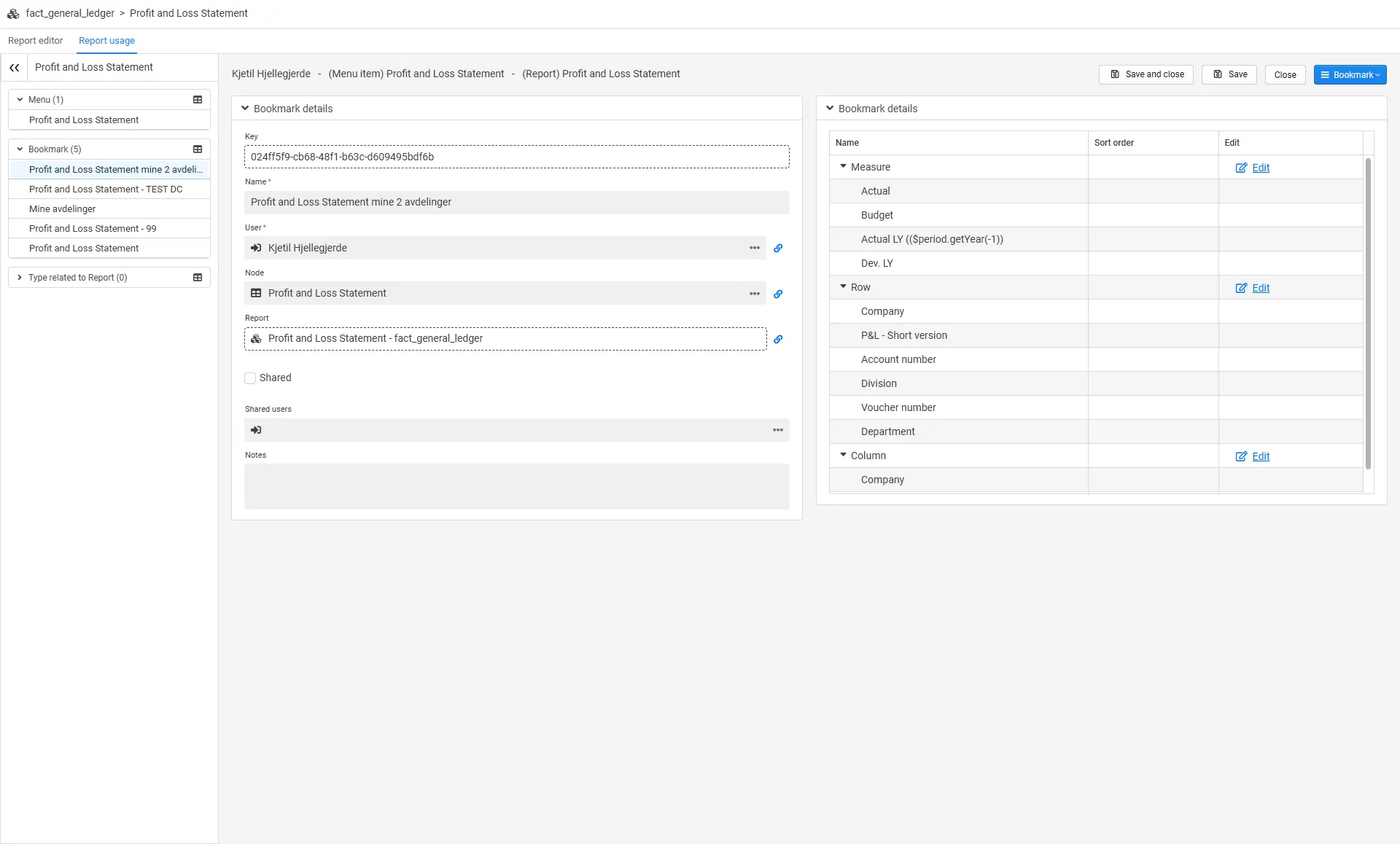
Section titled “Bookmarks”The Bookmark section is an overview of existing bookmarks related to the report. For more information regarding how to set up bookmarks, please see Report bookmark
Type related to report
Section titled “Type related to report”Deem Insight can be used to connect several reports from various business areas and link and filter them to the different CLM parts as e.g. account, project. This is configured in the Type related to Report section.
More information regarding type related to report can be found in type related to report.
Filters
Section titled “Filters”Filters added to the report are not possible for the user to remove or change. Standard SQL syntax is used (see SQL where clause).
Please note that most of the period scripts can be offset by adding +/- offset, -1 returns previous value.
In addition, some parameters in the filter might be scripted. The following expressions are supported.
| Function and script | Description |
|---|---|
$period.getCP(int i) | Returns current period, possible to offset +/- with input integer, 6 digits (‘201810’) |
$period.getCP_LY() | Returns current period last year, 6 digits (‘201710’) |
$period.getCP_LYTD() | returns periods LYTD, to be used with IN operator: (‘201801’,‘201802’). |
$period.getCP_YTD() | returns periods YTD, to be used with IN operator: (‘201801’,‘201802’,‘201803’,‘201804’). |
$period.getCurrentDate() | Returns the local date (‘20181016’) |
$period.getPeriod() | Returns the current period as integer, 6 digits (week or month based on the settings in $period.setMode()) (‘201847’) |
$period.getPeriodStr() | Returns the current period as string, 2 characters (‘01’) (week or month based on the settings in $period.setMode()) |
$period.getQuarter(int i) | Returns a quarter, can be offset by adding +/- offset, -1 returns previous quarter. 6 digits (‘201803’) |
$period.getTerial(int i) | Returns a financial terial, can be offset by adding +/- offset, -1 returns previous terial. (‘201802’) |
$period.getType() | returns TYPE_MONTH(month) or TYPE_WEEK(week). |
$period.getYear(int i) | Returns this periods year, can be offset by adding +/- offset, -1 returns previous year. (‘2018’) |
Prerequisites
Section titled “Prerequisites”- A verified connection and data source.
- Analytics administration access for the user.
Applies to
Section titled “Applies to”- Product: Deem Insight
- Area: Report administration
- Role: Administrator, consultant
Why does a new report show empty data?
Section titled “Why does a new report show empty data?”Check data source mapping, default filters, and role/menu access on the report.
Should I use page filters or regular filters first?
Section titled “Should I use page filters or regular filters first?”Use page filters for common user controls and regular filters for stricter report-level constraints.
Where did the report tabs go?
Section titled “Where did the report tabs go?”The report editor no longer uses tabs per configuration area. All areas are available in the navigation panel on the left side of the editor, and menu/bookmark/type connections are found in the Report usage tab.