

Record properties
This is where custom fields are created. All record properties needs to be added to a form.
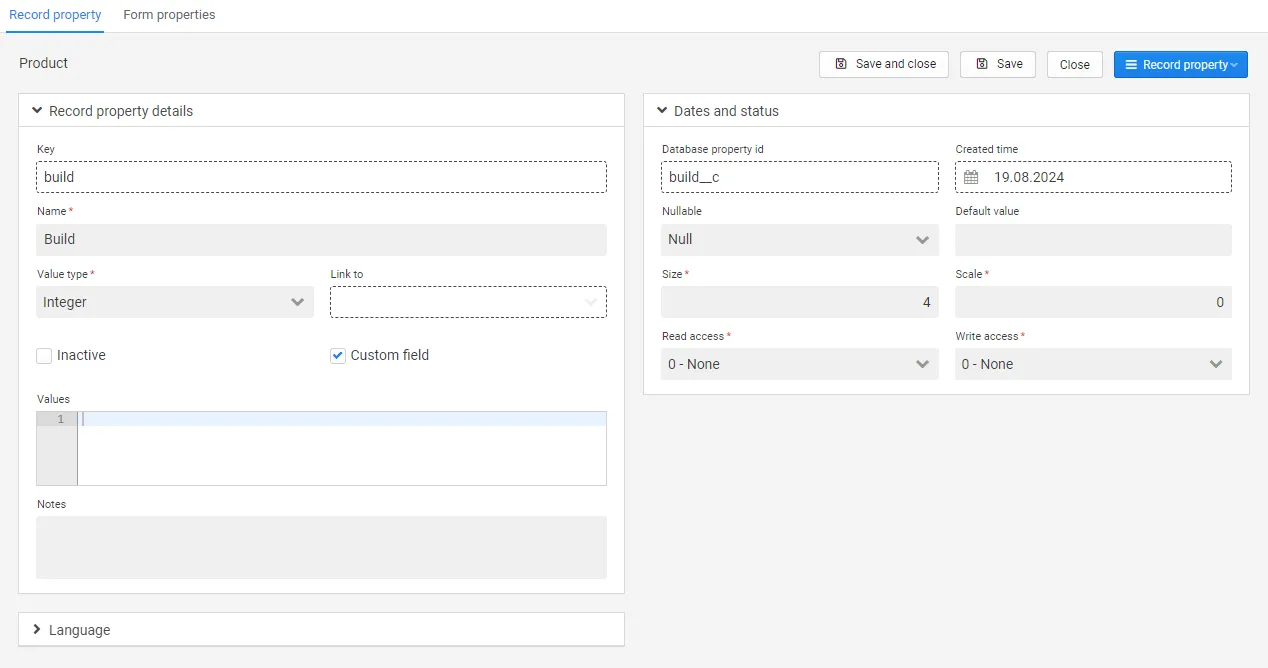
The image below displays the changes that can be done to a record property (custom field). New custom fields automatically creates a field in the database. The database field name is “key + __c”.
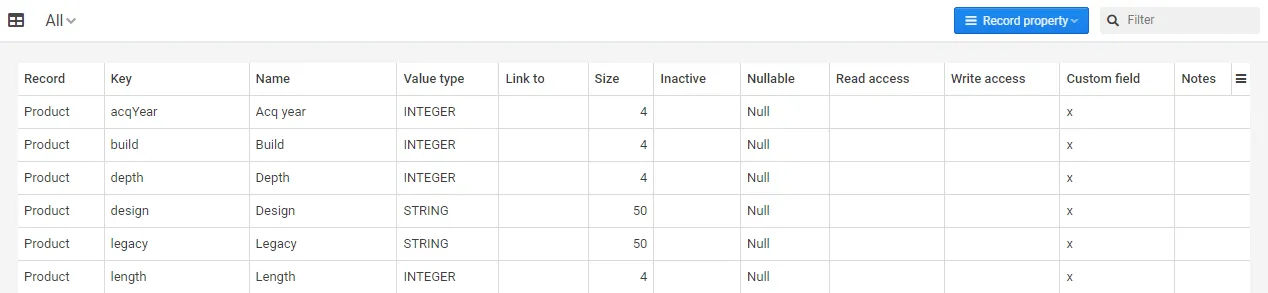
Record properties can also be accessed from within the ‘Records’ view, where you can generate the standard properties and do changes and/or make them inactive.
Value list
Section titled “Value list”A custom field can be shown as a dropdown with a fixed set of values. This takes two steps:
- On the record property, enter the values as JSON in the Values field.
- On the form field, set Component type to Option.
The Values field is only shown when Custom field is checked, and holds up to 1024 characters.
[{"option": "1", "name": "Low", "color": "green", "icon": "check"},{"option": "2", "name": "Medium", "color": "yellow"},{"option": "3", "name": "High", "color": "red", "icon": "exclamation_triangle"}]| Key | Required | Meaning |
|---|---|---|
option | Yes | The value stored in the database. It is converted to the property’s Value type, so both "1" and 1 work for an Integer. |
label or name | No | The text shown after the value. label is used if both are set. |
color | No | Color of the icon. |
icon | No | Icon shown in front of the value. |
The dropdown shows the value and the text together — 1 - Low. An entry without label or name shows the value alone.
Colors: blue, dark_blue, light_blue, brown, cyan, green, light_green, grey, dark_grey, orange, pink, purple, red, turquoise, yellow. A name that is not in the list falls back to the default icon color.
Icons: Font Awesome 4.7 names written with underscores instead of dashes — check, star, exclamation_triangle. The color is applied to the icon, so a color without an icon has no visible effect. An unknown icon name shows a warning triangle.