

User Administration
This chapter will explain how the permissions, access, roles and users are set up.
The user model
Section titled “The user model”Deem Insight allows you to set up users within and outside your organization. This functionality is related to the Account setup, and the contacts related to the accounts.
Every user points at a contact. Internal users are contacts on the account for your own organization. External users are contacts on the account for their organization. You don’t have to create the contact first: the new user dialog finds it or creates it for you.
Create a user
Section titled “Create a user”Open Users in the admin menu and choose User → New. The dialog has two steps.
Step 1 – E-mail. Type the e-mail address and click Next. This is the only thing you have to type.
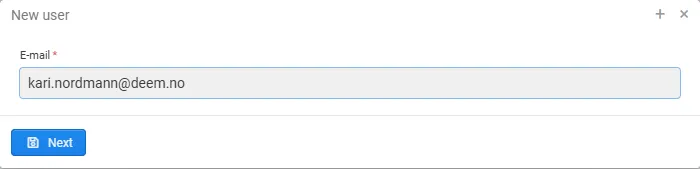
The address decides what happens next:
- A user already has it. The dialog says so (Error, existing key) and the button changes to View User, which opens that user.
- A contact has it. That contact is used. It is shown read-only, and its name is filled in.
- Nobody has it. A contact is created for the new user when you save. Its Main account is picked from the e-mail domain, using the account’s Domain field. Check the account, and change it if the guess is wrong.
To create a contact this way you need permission to create contacts. Without it, the dialog stops at step 1.
Step 2 – Details.
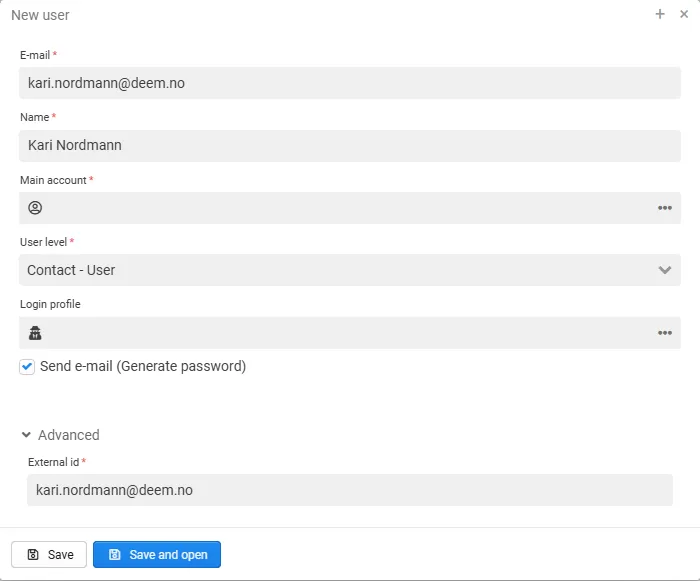
| Field | Description |
|---|---|
| Name | The user’s full name. Required. |
| Main account | Only shown when a new contact is created. See above. |
| User level | The contact record types that can sign in: Admin, Agent or User (shown as e.g. Contact - User). Default is User. The level is stored on the contact and decides what the user gets at sign-in. If an existing contact has a level that can’t sign in, it is raised to the level you choose here. |
| Login profile | Set it only when the user signs in through LDAP or Entra ID. Leave it empty for password sign-in. |
| Send e-mail (Generate password) | On by default. Mails the user a generated password, so they can sign in straight away. Hidden when the login profile doesn’t use passwords, or when e-mail is turned off for the tenant. |
| Advanced → External id | Defaults to the e-mail address. Change it only to match a key in another system. The contact always gets the same id as the user. |
Click Save, or Save and open to go straight to the new user.
You don’t choose a language. The user gets the contact’s language, then the account’s, then English.
Roles are set on the user after it is created (see Roles). Roles with Assign all user checked apply without that step.
Create a user from a contact
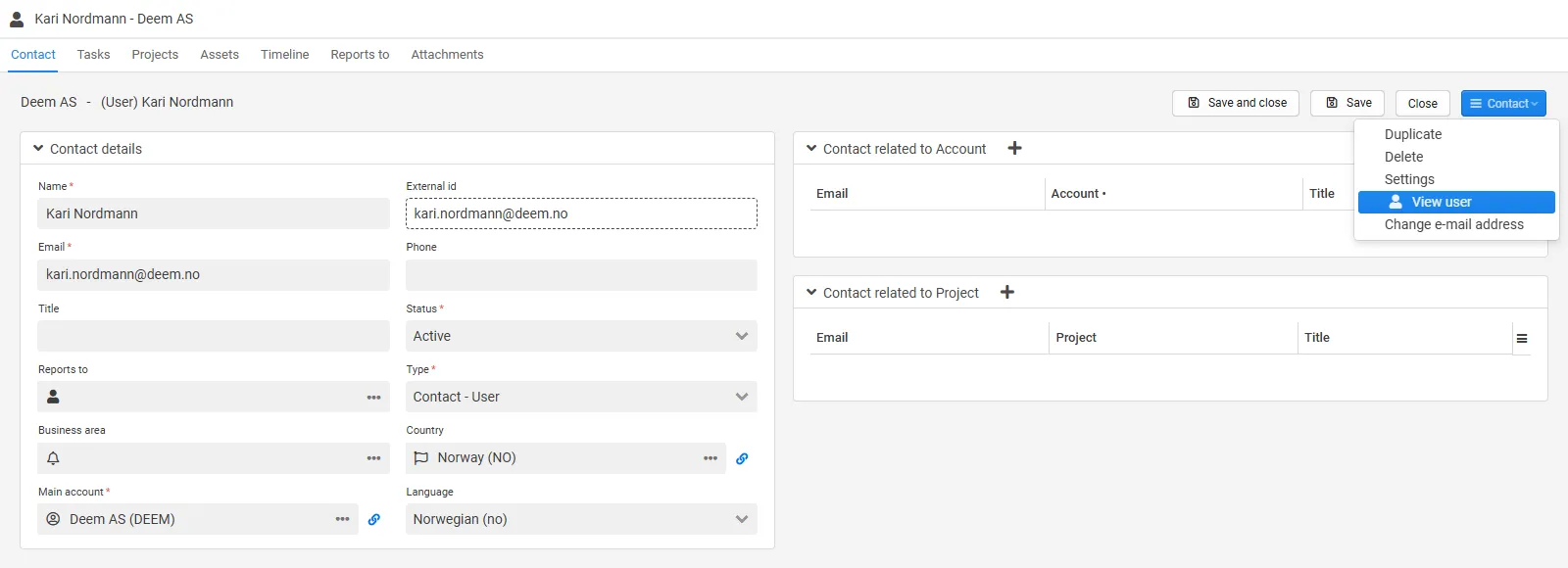
Section titled “Create a user from a contact”You can still start from a contact. Choose New user in the contact menu. The dialog skips the e-mail step and opens on the details, with the contact filled in.
- To edit/view the user, select the View User option in the contact menu.
The next chapters will explain how to set up roles and access for the user.
A role is used to define access to menus, access to reports, access to data in reports, access to system objects, and access to report- and user administration.
Roles determine whether users has access to a given report, and roles can also be used to differentiate how a given report is displayed for a user. This is useful when for instance an employee should only see information regarding himself and a leader should see information regarding all employees in a department.
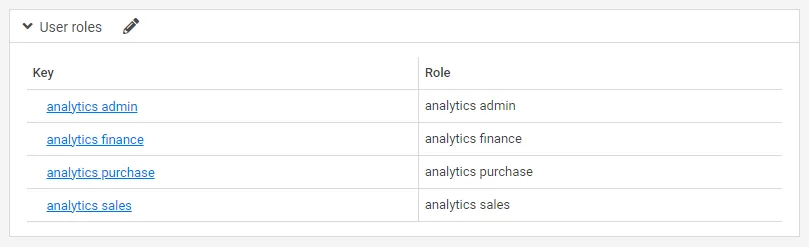
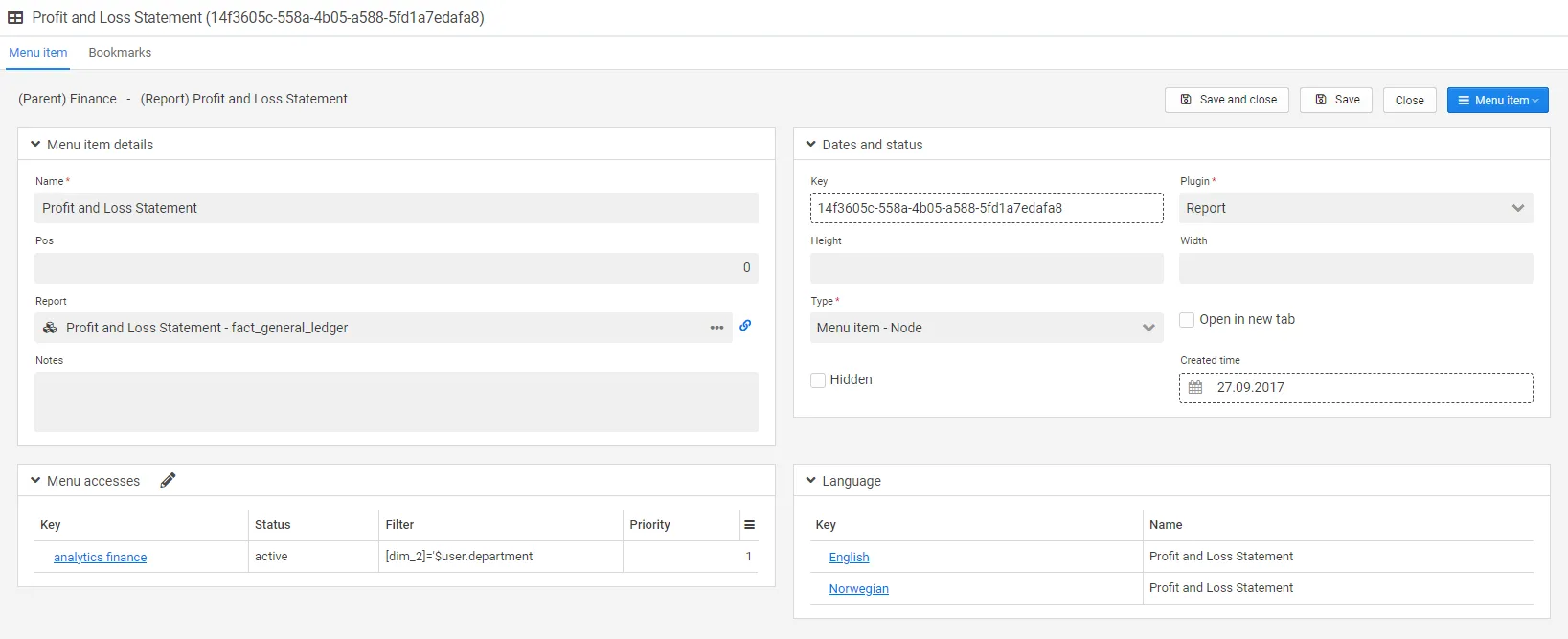
As stated above, roles can be used to differentiate the data different users can see in the reports. To do this a script needs to be set on the report. See image roles on report. For the user in image user role who is assigned the role Analytics Finance, the report will be filtered on [dim_2] $user.department. The user will not have access to data regarding other departments (dim_2).
User related to business unit
Section titled “User related to business unit”Access level in business unit level on e.g. division, facility, warehouse can be set up on the user related to business unit tab. This functionality filters the report according to how it is configured. Business units and record types needs to be set up in the admin menu, prior to setting it up on the user.

Role permissions
Section titled “Role permissions”Role settings can be set to give roles permissions to e.g system objects and CLM parts of Deem Insight (see full list of available role permissions further down).
Deem Insight is set up with some standard roles, e.g. admin, issue admin and clm with preset access settings. To customize roles please contact your consultant.
The permission settings are built up by first stating the object and then access rights.
| Field | Description |
|---|---|
*:*:* | Full access to all objects. The stars represents; object:access level:object element. |
menu:*:home | Full access to menu-home. |
contentbookmark:*:owner | Full access to own bookmarks. |
article:read:* | Read access to articles on the home page. |
todo:read,create:* | Read and create access to all tasks. |
Examples:
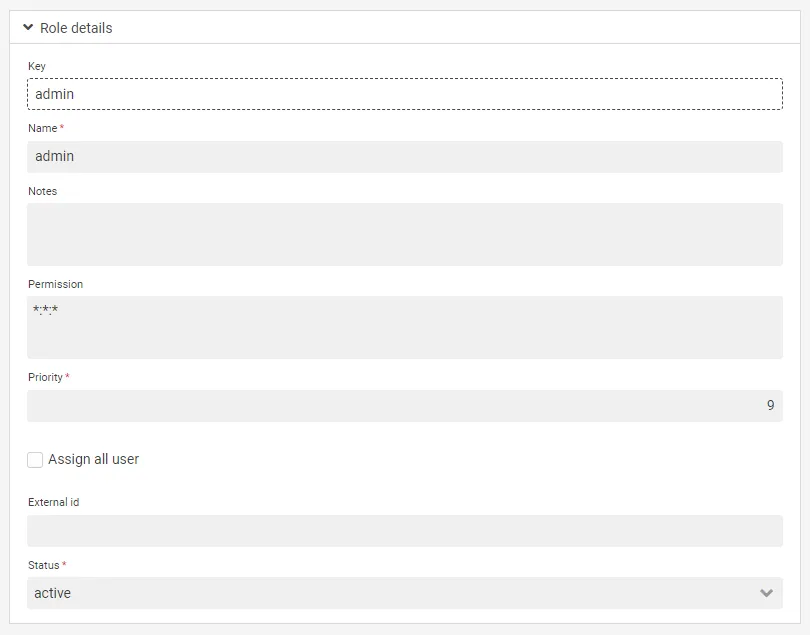
The admin role gives access to all elements in Deem Insight. We recommend very limited use of this role and urge you to rather use other roles to give access to parts of the system.
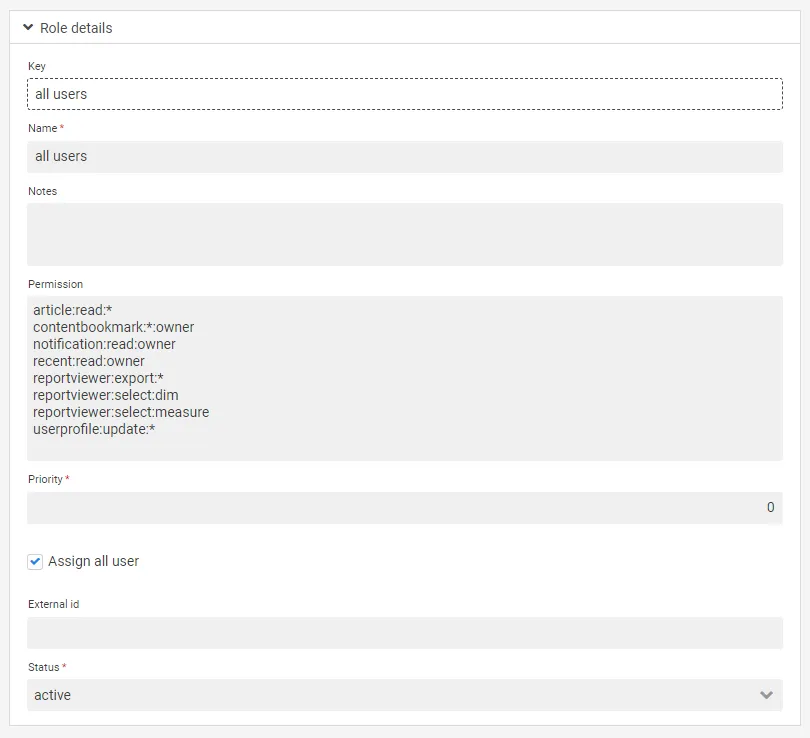
All users role:
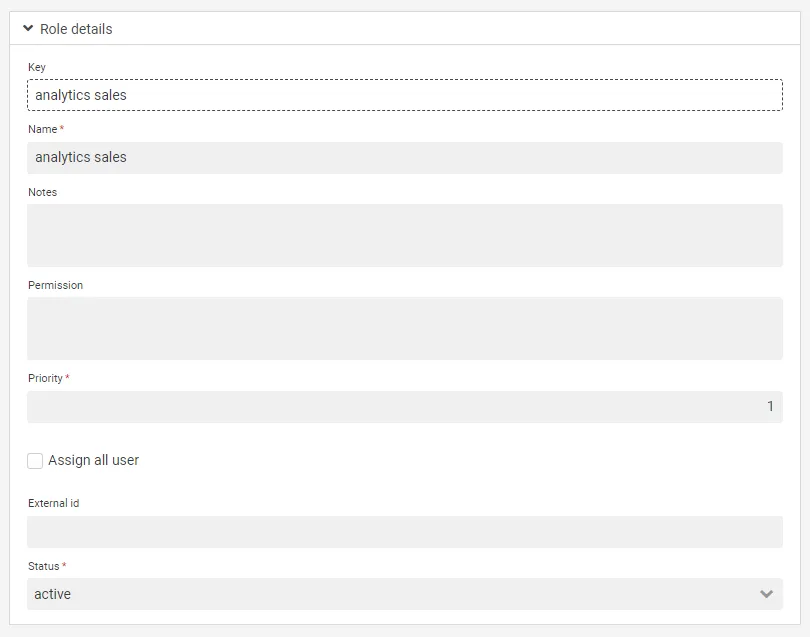
Roles are also set up to give access to reports. These roles seldom have permission to access system objects (the permission box is blank).
Available role permissions:
Section titled “Available role permissions:”account:*:*accountcontact:*:*activity:*:*article:*:*asset:*:*attachment:*:*baseform:*:*baseformgroup:*:*baseformproperty:*:*baselink:*:*basestatus:*:*basetransform:*:*basetransformfrom:*:*browselist:*:*businessarea:*:*businessprocess:*:*businessunit:*:*businessunituser:*:*checklist:*:*checklistline:*:*checkpointqos:*:*checkpointquery:*:*comment:*:*config:*:*contact:*:*contentaccess:*:*contentbookmark:*:*contentmenu:*:*contentnode:*:*country:*:*dataaggregation:*:*dataconnection:*:*dataobject:*:*datasource:*:*directorytenant:*:*email:*:*fieldlog:*:*issue:*:*jobentry:*:*jobstep:*:*jobtrigger:*:*language:*:*milestone:*:*notification:*:*opportunity:*:*order:*:*orderline:*:*post:*:*product:*:*productgroup:*:*productversion:*:*project:*:*projectcontact:*:*recent:*:*recordtype:*:*recordtypeaccess:*:*recordtypenode:*:*report:*:*reportobject:*:*role:*:*scorerule:*:*todopriority:*:*todoresolution:*:*user:*:*userofficeprofile:*:*userpasswordprofile:*:*userrole:*:*wikibook:*:*wikipage:*:*
Data feed and AI assistant permissions:
Section titled “Data feed and AI assistant permissions:”These are not objects in Insight but the endpoints a report, a dashboard app or an AI assistant reads through. They are granted on a role the same way, and most of them use the filter part to say which data source or entity the grant covers:
| Permission | Gives |
|---|---|
api-odata:read:* | Use of the Data feed at all. Combined with access to the data source, or to the report for a report feed |
ds-odata:<action>:<connection>/<source> | Writing to one data source through its Data feed — one grant per action. See Writing data from a dashboard app |
orm-odata:<action>:<entity> | Reading and changing an Insight object through the feed, per object — for example orm-odata:read:account |
api-mcp:read:* | Letting an AI assistant use Insight: search data sources, list columns, build dashboards. No business data on its own |
api-mcpdata:read:* | Letting an assistant read actual rows — a separate grant from the user’s ordinary data access |
api-mcp:create,update,delete:* | Letting an assistant change data |
An assistant or a feed never sees more than the user it acts for: object access, row filters and data source settings all still apply.
Roles for dashboard apps
Section titled “Roles for dashboard apps”A Dashboard app needs two kinds of users, and they need very different access: the people who open the dashboard, and the person who builds it. Two roles cover it.
Dashboard reader — everyone who should see dashboards:
api-odata:read:*datasource:read:*Dashboard designer — whoever builds and publishes them:
api-mcp:read:*api-mcpdata:read:*api-odata:read:*datasource:read:*api-file:create,update,delete:dashboardreport:*:*Leave out api-mcpdata:read:* when an external consultant does the building: their AI assistant then
works from the data source’s structure — columns, types, feed address — and never receives rows.
Then:
- Assign the roles to the users. Everyone who opens dashboards gets the reader role; the designer gets theirs on top.
- Give menu access to the dashboard report. If the report is not in the user’s menu tree, the page is unreachable and its feed stays closed.
- Sign out and in again — see the note above.
If the designer works through an AI assistant, the assistant connects as its own API client. Your consultant sets that up.
A dashboard that also writes data adds one grant per action, scoped to the data source — see
Writing data from a dashboard app.
For example, to let the users of a dashboard correct rows in the data source
fact_sales_statistics on the connection prd:
ds-odata:update:prd/fact_sales_statisticsName the connection and the data source by their keys, in lower case, as <connection>/<source>.
Reading needs no ds-odata grant — api-odata:read and access to the data source are enough.
Checking what a user can see
Section titled “Checking what a user can see”Roles, row filters and data source settings together decide what a user sees. Two tools answer the question directly: Show User access shows the rules, and Simulate user shows the result.
Show User access
Section titled “Show User access”Open the user (View User) and select Show User access. One window opens with these tabs:
| Tab | Shows |
|---|---|
| Menu | The user’s menu tree |
| Roles | The roles the user has |
| Data sources | Every data source, grouped by connection. Select one to see which role decides access, the filter applied to reads and writes, and the user’s data feed permissions |
| Permission | All permissions from the user’s roles |
Filters are shown as stored: $ macros such as $user.department are not resolved.
Users open the same window for themselves with My access in the user menu. Their own window has
an extra $user tab with the values the $ macros resolve to. My access needs
userprofile:read:access, and the filter text needs userprofile:read:accessfilter. Both are on the
All users role by default.
Simulate user
Section titled “Simulate user”An administrator with the user:su permission can work as another user. Choose Simulate user in
the user menu and pick the user, or use Simulate user in the menu on the user itself. The users
you opened recently are listed for one click.
While simulating:
- Menus, reports, data and data source filters are those of the selected user, including the data feed a dashboard app reads.
- The user menu shows Simulating and the user’s name.
- Changes you save are recorded as made by you, not by the simulated user.
- End simulation in the user menu takes the place of Sign out and returns you to your own session. To switch to another user, pick them directly; there is no need to end first.
You cannot simulate a user with a higher access level than your own. The simulated user’s login location rules are not checked.
Report Access
Section titled “Report Access”Reports can be accessed through either menu folders:
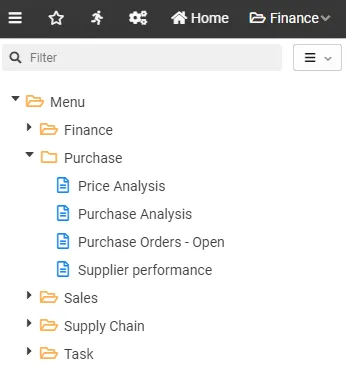
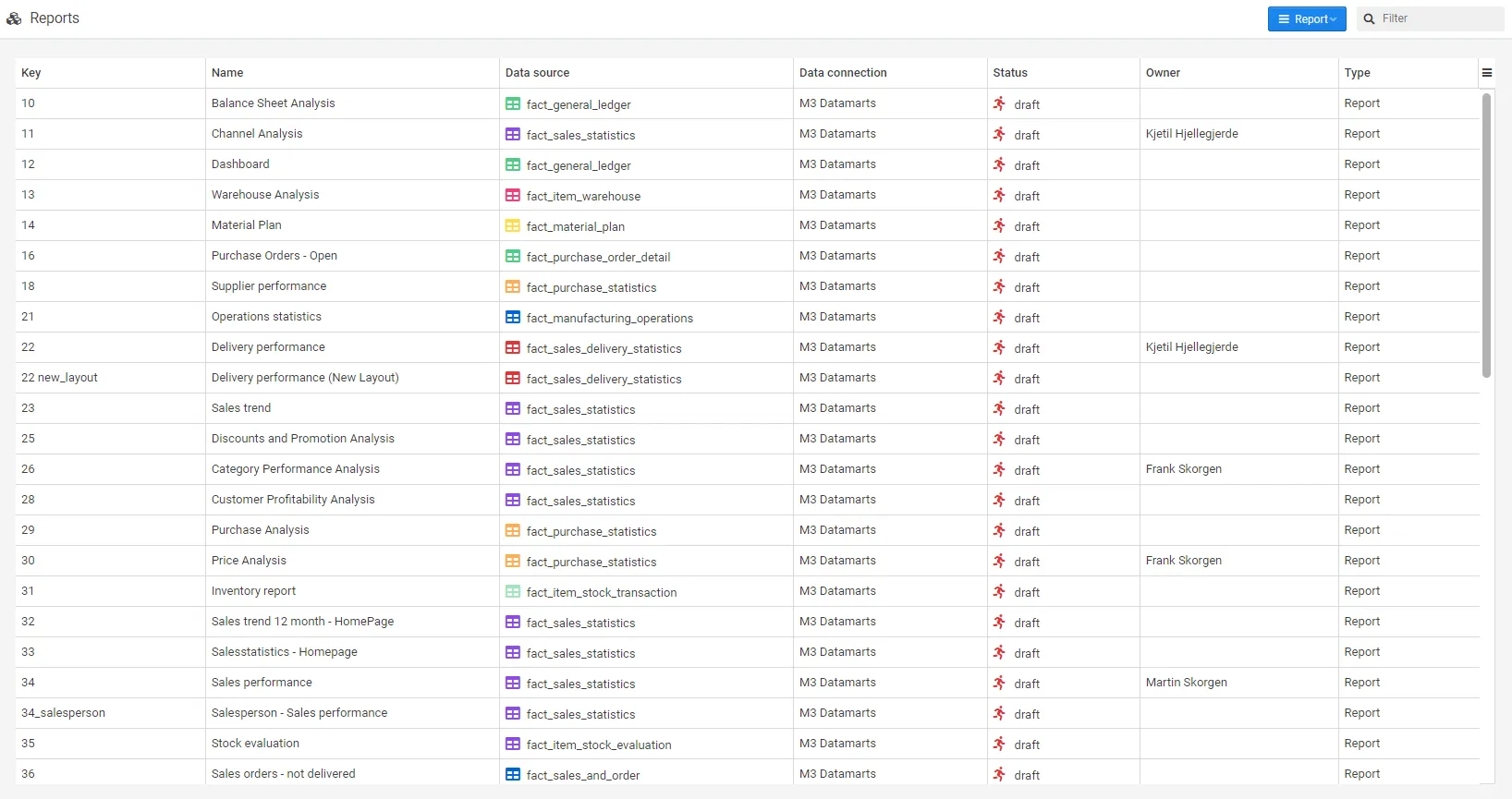
or browse all reports:
Report preview
Section titled “Report preview”To preview a report, first select a report in the “browse all reports-window” and press the preview button.

Find report menu
Section titled “Find report menu”To find out which menu folder a report is associated to, open the report and go to the Usage tab. The Content nodes section lists the menu points the report is connected to. The report in the example is located on in the menu folder finance.
