

Tables
Tables can be added to a report within widgets to display any data that provides valuable insights.
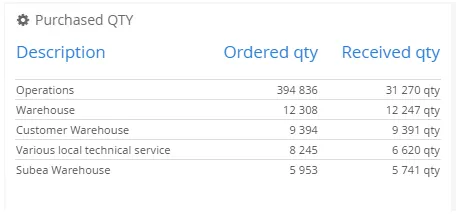
- The table widget can show grouped and sorted metrics alongside the main report.
- Column methods control labels, value expressions, and display formatting.
Table Method Overview
Section titled “Table Method Overview”addTable
Section titled “addTable”The addTable method is mandatory for creating a new table, as it initializes the widget in the associated report.
Syntax with parameter variables:
$olap.addTable( "table_id", "title_label", "icon", "data_filter", "row_limit" )Parameter Variable Description
Section titled “Parameter Variable Description”- table_id: A user-defined unique identifier for this table. The table_id specified here must be passed as an argument to subsequent methods (e.g., setTableSource, addTableColumn) to further configure and customize the table.
- title_label: The text label displayed as the title of this table.
- icon: A FontAwesome icon for the table. Available icons: fontawesome.io
- data_filter: General filter expression to limit which data is included for the table. Set to NULL if not required.
- row_limit: The limit number of rows (records) to display in the table. Set to NULL if not required.
Example with given arguments:
$olap.addTable( "top_5_product_groups", "Top 5 Sales by Product Groups (YTD)", "pencil", "", "5")setTableSource
Section titled “setTableSource”Overrides the default data source for a table, allowing it to retrieve data from an alternative table or view. This is useful when table data is stored in a different dataset than the report’s main data source. Using filter and drill functionality works if the dimensions are equally named (same column names).
Syntax with parameter variables:
$olap.setTableSource( "table_id", "alias_key", "matrix_name" )Parameter Variable Description
Section titled “Parameter Variable Description”Normal parameter variables:
- table_id: The unique identifier of the table to update.
- matrix_name: The name of the alternative data source table or view.
Optional argument:
- alias_key: The connection key for an external database if the data source is in a different database.
Example with given arguments:
$olap.setTableSource( "top_5_product_groups", "mssql", "fact_sales_statistics" )addTableColumn
Section titled “addTableColumn”Adds a new column to an existing table.
Syntax with parameter variables:
$olap.addTableColumn( "table_id", "column_id", "header_label", "value", 'value_format', 'prefix', 'suffix' )Parameter Variable Description
Section titled “Parameter Variable Description”Normal parameter variables:
- table_id: The unique identifier of the table to update.
- column_id: A user-defined unique identifier for this column. The column_id specified here must be passed as an argument to subsequent methods to further configure and customize the column of the table.
- header_label: The text label displayed as the header of this column.
- value: Defines the column value. Typically contains an expression for the current metric.
- value_format: The display format for the column value, using standard formatting syntax (e.g., number of decimals, thousand separators, percentage signs). Set to NULL if not required.
Optional arguments:
- prefix: Text or symbol displayed before the column value (e.g., USD).
- suffix: Text or symbol displayed after the column value (e.g., ex. tax).
Example with given arguments:
$olap.addTableColumn( "top_5_product_groups", "sales_ytd", "Sales YTD", "SUM(CASE WHEN [invoice_month] IN ?period.getCP_YTD() THEN [invoiced_amount_dcur] ELSE 0 END)", '###,###')setTableGroupBy
Section titled “setTableGroupBy”Groups rows in a table based on the values of a specified column. This is useful for summarizing data at a higher level by aggregating rows that share the same value in the selected column.
Syntax with parameter variables:
$olap.setTableGroupBy( "table_id", "column_id")Parameter Variable Description
Section titled “Parameter Variable Description”- table_id: The unique identifier of the table to update.
- column_id: The unique identifier of the column to update.
Example with given arguments:
$olap.setTableGroupBy( "top_5_product_groups", "sales_ytd")setTableOrderBy
Section titled “setTableOrderBy”defines the sort order for rows in a table. You can specify which column to sort by and whether the sort should be ascending or descending.
Syntax with parameter variables:
$olap.setTableOrderBy( "table_id", "column_id sort_direction" )Parameter Variable Description
Section titled “Parameter Variable Description”- table_id: The unique identifier of the table to update.
- column_id sort_direction: The unique identifier of the column to update and sort direction combined as a string.
- Valid arguments: asc = Ascending, desc = Descending.
Example with given arguments:
$olap.setTableOrderBy( "top_5_product_groups", "sales_ytd desc" )setTableColumnImages
Section titled “setTableColumnImages”Adds visual indicators to a table column based on threshold values using fontawesome icons. It dynamically displays different icons for values below, between, or above defined thresholds, allowing users to quickly interpret data performance.
Syntax with parameter variables:
$olap.setTableColumnImages( "table_id", "column_id", "red_icon", "yellow_icon", "green_icon", "yellow_limit", "green_limit")Parameter Variable Description
Section titled “Parameter Variable Description”- table_id: The unique identifier of the table to update.
- column_id: The unique identifier of the column to update.
- red_icon: Icon displayed when the column value is below the yellow limit.
- yellow_icon: Icon displayed when the column value is between the yellow and green limits.
- green_icon: Icon displayed when the column value exceeds the green limit.
- yellow_limit: Threshold value defining the boundary between red and yellow status.
- green_limit: Threshold value defining the boundary between yellow and green status.
Example with given arguments:
$olap.setTableColumnImages( "top_5_product_groups", "sales_ytd", "caret_down", "caret_right", "caret_up", "10000000", "5000000")setTableColumnTrendImage
Section titled “setTableColumnTrendImage”Adds dynamic icons to a table column to visually represent trends between two values (previous vs. actual). It allows you to show different icons depending on whether the actual value is higher, lower, or unchanged compared to the trend (previous) value. Thresholds define the ranges for red, yellow, and green statuses.
Syntax with parameter variables:
$olap.setTableColumnTrendImage( "table_id", "column_id", "trend_field", "real_field", "red_icon", "yellow_icon", "green_icon", "yellow_limit", "green_limit")Parameter Variable Description
Section titled “Parameter Variable Description”- table_id: The unique identifier of the table to update.
- column_id: The unique identifier of the column to update.
- trend_value: Defines the trend (previous) value of the column. Typically used for comparison with the actual value.
- real_value: Defines the actual (realized) value of the column to be compared against the target. Typically contains the expression for the current performance metric.
- red_icon: Icon displayed when the column value is below the yellow limit.
- yellow_icon: Icon displayed when the column value is between the yellow and green limits.
- green_icon: Icon displayed when the column value exceeds the green limit.
- yellow_limit: Threshold value defining the boundary between red and yellow status.
- green_limit: Threshold value defining the boundary between yellow and green status.
Example with given arguments:
$olap.setTableColumnTrendImage( "top_5_product_groups", "sales_ytd", "SUM(CASE WHEN [invoice_month] IN ?period.getCP_YTD(-1) THEN [invoiced_amount_dcur] ELSE 0 END)", "SUM(CASE WHEN [invoice_month] IN ?period.getCP_YTD() THEN [invoiced_amount_dcur] ELSE 0 END)", "caret_down", "caret_right", "caret_up", "10000000", "5000000")setTableColumnProgress
Section titled “setTableColumnProgress”Adds a visual progress bar to a specified table column. This progress bar dynamically changes color based on defined threshold values, allowing users to instantly assess data performance relative to the set limits.
Syntax with parameter variables:
$olap.setTableColumnProgress( "table_id", "column_id", "yellow_limit", "green_limit")Parameter Variable Description
Section titled “Parameter Variable Description”- table_id: The unique identifier of the table to update.
- column_id: The unique identifier of the column to update.
- yellow_limit: Threshold value defining the boundary between red and yellow status.
- green_limit: Threshold value defining the boundary between yellow and green status.
Example with given arguments:
$olap.setTableColumnProgress( "top_5_product_groups", "sales_ytd", "10000000", "5000000")setTableKpiColors
Section titled “setTableKpiColors”Sets custom colors for KPI-style visual indicators within a table. These colors define how data is highlighted based on thresholds, helping users quickly identify performance status (e.g., red = poor, green = good).
Syntax with parameter variables:
$olap.setTableKpiColors( "table_id", "blue_color", "green_color", "orange_color", "red_color" )Parameter Variable Description
Section titled “Parameter Variable Description”- table_id: The unique identifier of the table to update.
- green_color: The color for KPI values above green_budget_rate (good performance).
- yellow_color: The color for KPI values between yellow_budget_rate and green_budget_rate (warning).
- red_color: The color for KPI values below yellow_budget_rate (poor performance).
Example with given arguments:
$olap.setTableKpiColors( "top_5_product_groups", "blue", "green", "orange", "red" )setTableUrlLink
Section titled “setTableUrlLink”Adds a clickable link icon to each row in the table. When the user clicks the icon, they are redirected to the internal URL specified in the corresponding data field.
Syntax with parameter variables:
$olap.setTableUrlLink( "table_id", "internal_url")Parameter Variable Description
Section titled “Parameter Variable Description”- table_id: The unique identifier of the table to update.
- internal_url: The clickable link. Must reference a column from the data source containing a part of or the full internal URL. Example for a row: x35_109 or http://localhost:18080/demo/ui#!x35_109
Example with given arguments:
$olap.setTableUrlLink( "top_5_product_groups", "[account_url]")setTableInfoLink
Section titled “setTableInfoLink”Adds a folder icon behind each row in the table. When users hover over the icon, they see additional text, and clicking the icon navigates to a report, issue or another internal URL.
Syntax with parameter variables:
$olap.setTableInfoLink( "table_id", "hover_info", "internal_url" )Parameter Variable Description
Section titled “Parameter Variable Description”- table_id: The unique identifier of the table to update.
Optional arguments:
- hover_info: Text that appears when hovering over the info icon. Must reference a column from the data source.
- internal_url: The clickable link. Must reference a column from the data source containing a part of or the full internal URL. Example for a row: x35_109 or http://localhost:18080/demo/ui#!x35_109
Example with given arguments:
$olap.setTableInfoLink( "top_5_product_groups", "[payer]", "[account_url]" )setTableHeaderUrlLink
Section titled “setTableHeaderUrlLink”Adds a clickable link icon to the table header. When users click the table header, they are redirected to a report or another internal URL.
Syntax with parameter variables:
$olap.setTableHeaderUrlLink( "table_id", "internal_url" )Parameter Variable Description
Section titled “Parameter Variable Description”- table_id: The unique identifier of the table to update.
- internal_url: The clickable link. Part of or the full internal URL (e.g., report reference). The full internal URL in the example: http://localhost:18080/demo/ui#!x35_109
Example with given arguments:
$olap.setTableHeaderUrlLink( "top_5_product_groups", "x35_109" )setTableExternalUrlLink
Section titled “setTableExternalUrlLink”Adds a clickable link icon to the table header. When users click the table header, they are redirected to an external URL.
Syntax with parameter variables:
$olap.setTableExternalUrlLink( "table_id", "external_url")Parameter Variable Description
Section titled “Parameter Variable Description”- table_id: The unique identifier of the table to update.
- external_url: The clickable link. The full external URL.
Example with given arguments:
$olap.setTableExternalUrlLink( "top_5_customers", "https://example.com/invoice/12345")setKpiFilterCollection
Section titled “setKpiFilterCollection”Controls how filters and OLAP actions (slice, dice, drill, and pivot) affect a table. You can choose whether the table responds to all filter scope, only header filters, or remains static.
Syntax with parameter variables:
$olap.setTableShowAllElements( "table_id", "olap_scope" )Parameter Variable Description
Section titled “Parameter Variable Description”- table_id: The unique identifier of the table to update.
- olap_scope: Defines which OLAP-actions affect the KPI.
- Valid arguments: 0 = Respond to all actions, 1 = Respond only to header actions, 2 = Respond only to report-level actions.
Example with given arguments:
$olap.setTableShowAllElements( "top_5_customers", "1" )setTableSize
Section titled “setTableSize”Defines the width of a table widget for different screen sizes, using Bootstrap grid classes. This enables responsive layouts so tables look good on mobile, tablet, and desktop devices.
Syntax with parameter variables:
$olap.setTableSize( "table_id", "xs_size", "sm_size", "md_size", "lg_size" )Parameter Variable Description
Section titled “Parameter Variable Description”- table_id: The unique identifier of the table to update.
- xs_size: Width of the KPI on extra small screens (mobile).
- Valid arguments: XS1, XS2, …, XS12
- sm_size: Width of the KPI on small screens (tablets).
- Valid arguments: SM1, SM2, …, SM12
- md_size: Width of the KPI on medium screens (desktops).
- Valid arguments: MD1, MD2, …, MD12
- lg_size: Width of the KPI on large screens (large desktops).
- Valid arguments: LG1, LG2, …, LG12
Example with given arguments:
$olap.setTableSize( "top_5_product_groups", "XS12", "SM3", "MD3", "LG3")setTableFixedFirstColumnWidth
Section titled “setTableFixedFirstColumnWidth”Fixes the width (in pixels) of the first column in the table.
Syntax with parameter variables:
$olap.setTableFixedFirstColumnWidth( "table_id", "column_width" )Parameter Variable Description
Section titled “Parameter Variable Description”- table_id: The unique identifier of the table to update.
- column_width: Width (in pixels) to apply to the first column.
Example with given arguments:
$olap.setTableFixedFirstColumnWidth( "top_5_customers", "250" )Table Example
Section titled “Table Example”
$olap.addTable( "1", "Purchased QTY", "cog", "", "5" )$olap.addTableColumn( "1", "1", "Description", "[accounting_control_description]", "string" )$olap.addTableColumn( "1", "2", "Ordered QTY", "SUM([ordered_quantity])", '#,###' )$olap.addTableColumn( "1", "3", "Received QTY", "SUM([received_quantity])", '#,###', 'NULL', 'QTY' )$olap.setTableGroupBy( "1", "col1" )$olap.setTableOrderBy( "1", "col2 desc" )$olap.setTableSize( "1", "XS12", "SM3", "MD3", "LG3" )